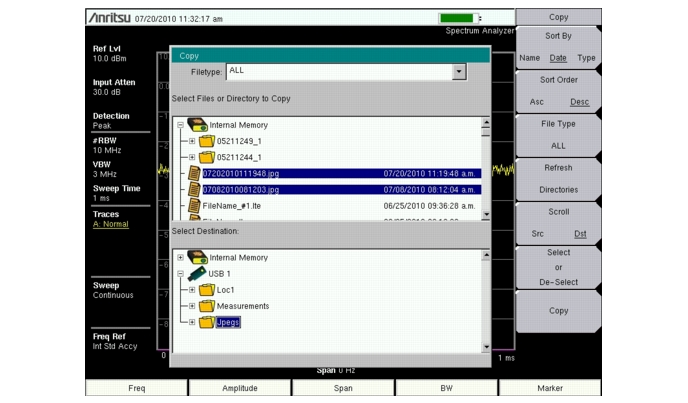
The steps below detail copying a file from internal memory to an external flash drive. Select the files to copy in the top window and the location for the files to be copied to in the bottom window (Figure: “Two .jpg Files Ready to Copy from Internal Memory to the USB Drive, Jpeg Folder”). Refer to the “Copy Menu” for additional information.
|
2.
|
From the File main menu, press the Copy submenu key. The Copy submenu and Copy dialog box are displayed.
|
|
3.
|
Select the file(s) to copy. To select multiple files, highlight the first then press the Select or De-Select key to keep the file selected. The file will be outlined in blue (Figure: “Two .jpg Files Ready to Copy from Internal Memory to the USB Drive, Jpeg Folder”). Repeat with all the files to copy.
|
 |
|
Use the Left/Right arrow keys to Collapse/Expand folders.
|
|
4.
|
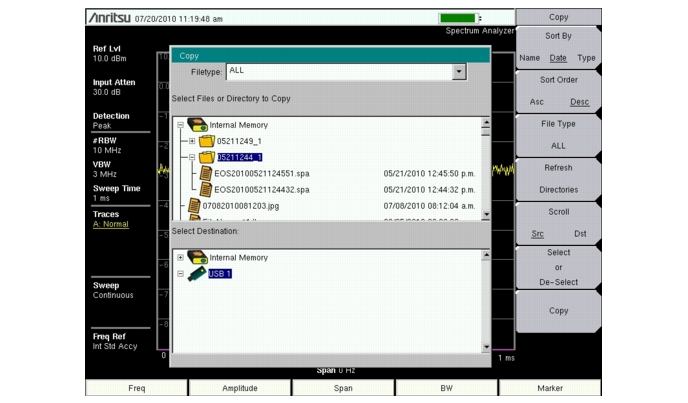
To display files within a folder, select the folder and press the Enter key or the Right arrow key. The + symbol indicates additional files or folders with the folder (Figure: “Expanded Folder”). To expand the + symbol, highlight the folder and press the Right arrow key.
|
 |
|
5.
|
Press the Scroll key and highlight the USB drive in the lower window using the Up/Down arrow keys. The Scroll submenu key toggles between Src (top window) and Dst (bottom window).
|
|
7.
|
Press the Copy key to copy the files to the USB drive.
|