The Spectrum Master contains a feature that allows you to update its firmware by using a USB memory device. First, you must load the USB memory device with the firmware using Master Software Tools (MST). Review the section (in MST Help) that discusses this process. After the firmware is loaded onto the USB memory device, follow the instructions below to update the firmware on your Spectrum Master.
|
2.
|
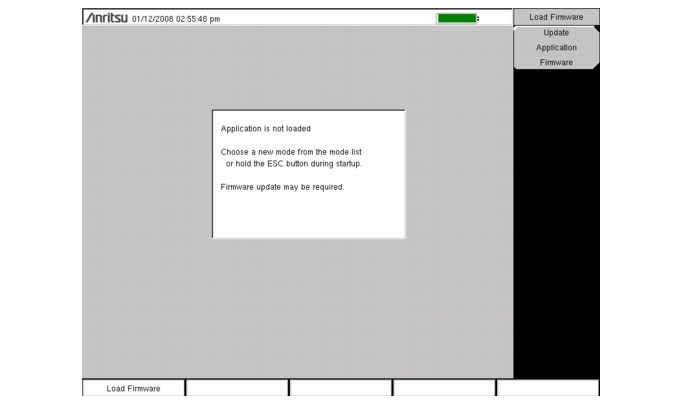
Press the follow key sequence: Shift > System (8) > System Options > Reset > Update Firmware. The Load Firmware main menu key is displayed (Figure: “Firmware Main Menu”).
|
 |
|
3.
|
Press the Load Firmware main menu key to list the Firmware Update menu and the Update Application Firmware submenu key.
|
|
4.
|
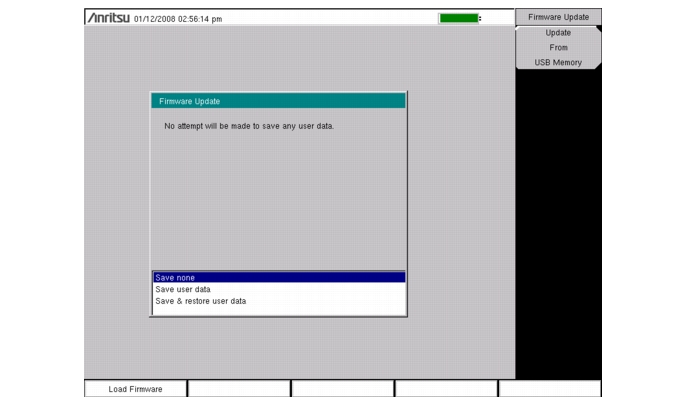
Press the Update Application Firmware submenu key, and the Firmware Update dialog opens (Figure: “Firmware Update Menu”).
|
 |
|
5.
|
Highlight each of the save choices: Save None, Save User Data, and Save & Restore User Data. Read through each choice carefully and then select the desired save mode.
|
|
•
|
Save None: No attempt will be made to save any user data.
|
|
•
|
Save User Data: User data will be save to the selected external media device.
|
|
If not enough memory space is available for all user data, then some data may be lost during this process.
|
|
•
|
Save & Restore: User data will be saved to the selected external media device. The instrument will also attempt to restore the files to the instrument after the update.
|
|
If not enough memory space is available for all user data, then some data may be lost during this process.
|
|
6.
|
Press Enter to begin the firmware update process. To abort the process, press Esc, then choose another analyzer mode or power down.
|
|
7.
|
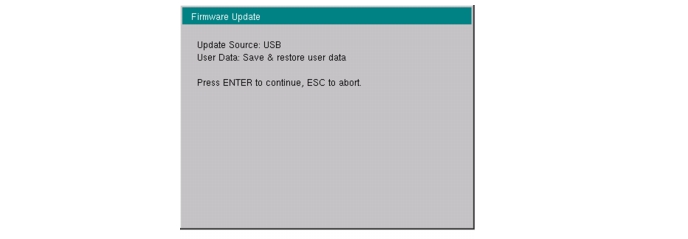
The Firmware Update dialog will query you to confirm the process by pressing Enter to continue or Esc to abort (Figure: “Firmware Update Menu”).
|
 |
|
8.
|
Select Enter and the firmware update process begins. The Firmware Update dialog displays the following message:
|