 |
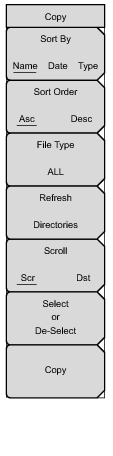
This menu and dialog box is used to copy folders and files. Select folders or files with the Up/Down keys or the rotary knob. Figure: Copy Dialog Box shows the Copy dialog box with two JPEG images and one folder (including the folder’s contents) selected and ready to be copied to a USB flash drive. Highlight a folder and press Enter to view the contents.
Press this submenu key to sort file and folder lists by name, by type of file, or by the date that the file was saved.
Displays the folder or file in ascending or descending order based on the selection in the Sort By key.
Press this submenu key to select what type of file to view for copying. The options are: ALL, Measurement, Setup, or Jpeg. The file type can be changed with the Up/Down keys or the rotary knob. Press Enter to make the selection.
Press this submenu key to use the scroll function in the Source Folder (Scr - top panel) or Destination Folder (Dst - bottom panel). See Figure: Copy Dialog Box.
Select or De‑Select
Use this key to select or deselect the file(s) or folder(s) to be copied. When selected, a file or folder will be outlined in blue, see Figure: Copy Dialog Box.
Copies the files or folders selected in the top window to the destination selected in the bottom window. A dialog box will display showing when the copying is complete. If a file with the same name exists in the destination folder a warning box will display to allow file overwrite or to cancel.
|