Measurement setups are provided through the Tools and Setting menus. This section provides the methods to capture, edit and display data.
Editor Tools
The editing tools from the Tools menu bar allow you to view and edit selected file measurements results.
Cable Editor
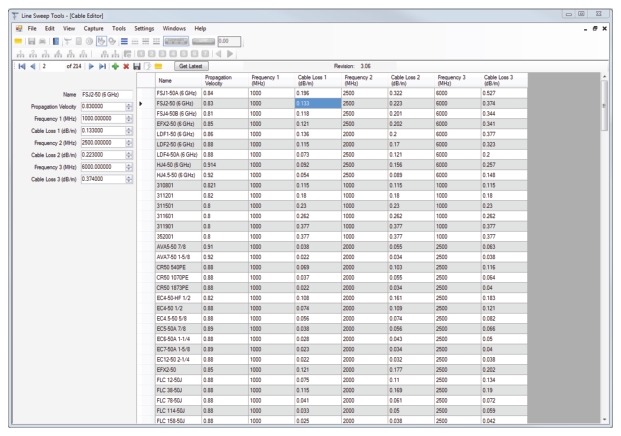
The Cable List Editor allows you to edit or add to a cable file which contains definitions of multiple cables. You can also upload the new cable definitions into the instrument in use or save them locally on a PC. The Get Latest button will retrieve a cable list from the Anritsu Web Site. Confirm that you have Internet connection before pressing this button. Revision, above the cable list, displays the current version of the cable file in the Cable Editor in LST. An original cable list from Anritsu will include values to two decimal places, n.xy. If the files were or are edited then an additional decimal and number will be added to Revision, n.xy.z. See Revision in the following picture. If using the Get Latest button to obtain a cable list from the Anritsu Web Site, all data in the cable editor will be over-written.
Cable Editor
Connected to an Instrument
Add a New Cable
1. Click Cable Editor in the Tools menu.
• The Cable Editor opens with the parameters, from the instrument in use, loaded into the editor.
2. Press the Add new button on the toolbar.
• The cursor moves to the empty field after the list of filled fields.
3. Enter the name of the cable and its parameters in the left column of entry windows in the Cable Editor.
• Clicking the new entry updates the value in the parameter matrix.
4. Click the Upload to Instrument command in the Capture menu or the press the F3 button on the PC keyboard to upload the new cable list to the instrument.
• Or, press the Export button on the toolbar to save the list locally on the PC.
• Or, press the Save Data button to save the list to update LST internal cable list.
Edit/Change an Existing Cable’s Parameters
1. Click Cable Editor in the Tools menu.
• The Cable Editor opens with the parameters, from the instrument in use, loaded into the editor.
2. Press the Open button on the toolbar to edit a previously saved cable list.
3. Select the desired cable in the list.
4. Enter the parameter values for the existing cable.
5. Click the Upload to Instrument command in the Capture menu or the press the F3 button on the PC keyboard to upload the updated cable list to the instrument.
• Or, press the Export button on the toolbar to save the list locally on the PC.
• Or, press the Save Data button to save the list to update LST internal cable list.
Disconnected from an Instrument
Create a New Cable List
1. Click Cable Editor in the Tools menu.
• The Cable Editor opens with the parameter fields empty.
2. Press the Add new button on the toolbar.
• The cursor moves to the empty field after the list of filled fields.
3. Enter the name of the cable and its parameters in the left column of entry windows in the Cable Editor.
• Clicking the new entry updates the value in the parameter matrix.
4. Repeat Step 2 and Step 3 until all cables have been entered.
5. Press the Export button on the toolbar to save the list locally on the PC. Or, press the Save Data button to save the list to update LST internal cable list.
Add a New Cable
1. Click Cable Editor in the Tools menu.
• The Cable Editor opens with the parameter fields empty.
2. Press Open on the toolbar.
• The Open a Cable File dialog opens.
3. Highlight the desired Cable file and press Open.
4. On the toolbar, press the Add new button.
• The cursor moves to the empty field after the list of filled fields.
5. Enter the name of the cable and its parameters in the left column of entry windows in the Cable Editor.
• Clicking the new entry updates the value in the parameter matrix.
6. Repeat Step 4 and Step 5 until all cables have been entered.
7. Press the Export button on the toolbar to save the updated cable list locally on the PC. Or, press the Save Data button to save the list to update LST internal cable list.
Edit/Change an Existing Cable’s Parameters
1. Click Cable Editor in the Tools menu.
• The Cable Editor opens with the parameter fields empty.
2. Press Open on the toolbar.
• The Open a Cable File dialog opens.
3. Highlight the desired cable file and press Open.
4. Scroll to the desired cable or enter the number of the cable in the entry window.
5. Enter/change the parameter values for that cable.
• Clicking the new entry updates the value in the parameter matrix.
6. Press the Export button on the toolbar to save the updated cable list locally on the PC. Or, press the Save Data button to save the list to update LST internal cable list.
Note
If pressing the Get Latest button to retrieve the latest Cable List from the Anritsu Web Site, you must be connected to the Internet.
Revision: This is the current version for the Cable List internal to LST.