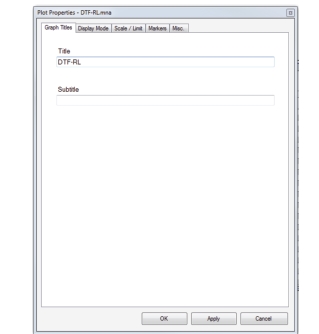
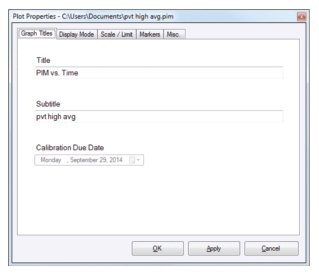
Go to the Edit menu and select Plot Properties to create a plot template. The tabs available are:
• Graph Titles
• Display Mode
• Scale/Limit
• Markers
• Misc.
Plot Properties Dialog
Graph Titles
Use this dialog to set the titles in the measurement plot.
1. In the Main Menu, click Plot Properties from the Edit Menu.
2. Click the Graph Titles tab.
Title: The first title listed on the Plot Information dialog. This will be the main title displayed on each measurement in the Line Sweep Tools workspace or print out.
1. Type in a new title in the Title entry window
2. Press the Apply button.
3. Press the OK button when done
Subtitle: The second titled listed on the Plot Information dialog. This will be the secondary title displayed on each measurement in the Line Sweep Tools workspace or print out.
1. Type in a new title in the Subtitle entry window
2. Press the Apply button.
3. Press the OK button when done.
For MW82119B, PIM vs. Time Measurements Only
Calibration Due Date – Displays the date the instrument is due for calibration. If the trace was captured in firmware version v1.14, it has no calibration date. The Calibration Due Date will be active so you can set a date. Once the date is set, the Calibration Due Date entry box will become inactive and you can no longer change the date. For traces captured with firmware v1.14 or later, the Calibration Due Date is an inactive entry box. It just displays the calibration due date.