The Settings menu drop-down selections are described in this section.
Graph Colors
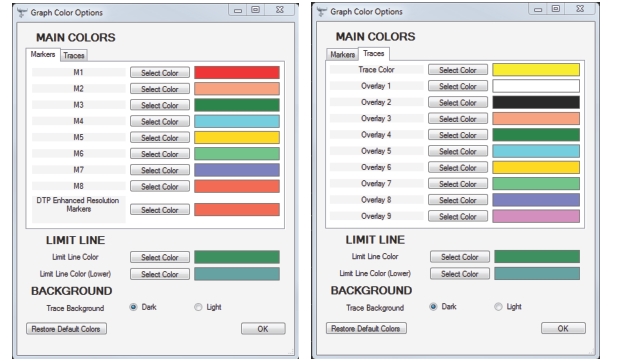
With this dialog, markers, limit line, trace, and background colors can be set as desired. Click Graph Colors in the Setting menu to open the Graph Color Options dialog.
Graph Color Options
Set Marker Color (including PIM Enhanced Resolution Markers)
1. Press the Markers tab.
2. Press Select Color for the desired Marker.
3. Select a color from the Basic colors palette or create a color using the Define Custom Colors >> button and window. Press OK.
4. Press OK.
Set Limit Line Color
1. Press Select Color for Limit Line.
2. Select a color from Basic colors palette or create a color using the Define Custom Colors>> button and window. Press OK.
3. Press OK.
Set Trace and Overlay Color
1. Press the Traces tab.
2. Press Select Color for Trace Color or the desired Overlay.
3. Select a color from Basic colors palette or create a color using the Define Custom Colors>> button and window. Press OK.
4. Press OK.
Set Background Color
1. Perform either of the following instructions depending on the desired background color.
2. Click Dark to set the graph background to black and change the colors for markers, limit line, and trace to its associated colors for a black background.
3. Click Light to set the graph background to white and change the colors for markers, limit line, and trace to the associated colors for a white background.
4. Press OK.
Reset Colors to Default
Press the Restore Default Colors button to set the Markers, Traces, Limit Lines and Background to their original colors.