From the File Menu, select the Reporting menu to provide captured data options.
Line Sweep Report Setup
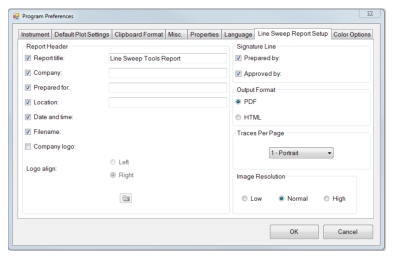
Opens the Program Preferences dialog with the Line Sweep Report Setup active allowing you to select/set the 5 major components of a report – Report Header, Signature Line, Output Formant, Traces Per Page and Image Resolution.
Program Preferences – Line Sweep Report Setup
1. Click Reporting in the File menu followed by clicking on Line Sweep Report Setup.
• The Program Preference dialog opens with the Line Sweep Report Setup tab selected.
2. Setup the “look” of the generated report by selecting the desired parameters of the Report Header, Signature Line, Output Format, Traces Per Page and Image Resolution.
3. Press the OK button. The new settings are saved.
Line Sweep Generate Report
Generate Report can produce either PDF or HTML reports based on your selection made for Output Format in Report Setup. The steps below currently state PDF files. For HTML generated reports, substitute the PDF references with HTM.
1. Click Reporting in the File menu followed by clicking on Line Sweep Generate Report.
• The Save a PDF File dialog opens.
2. Enter a name for the file or use the default name “report.pdf”.
3. Press the Save button when done.
• The report is displayed in your default PDF viewer.
If the PDF file size is too large to fit within the limits of an email attachment, some suggestions for reducing the file size are:
• Keep file size to no more than 150 traces
• Keep file size to no more than 10 mega bytes
• Split report into multiple PDFs
• Reduce number of traces per page
• Decrease image resolution
• Set color option to black and white
PIM Report Generator
Create a PIM report.
1. Click Reporting in the File menu.
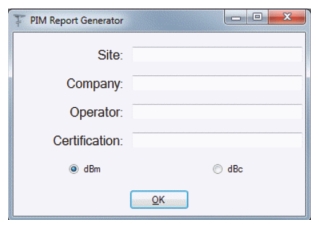
2. Click PIM Report Creator in the submenu and the PIM Report Creator dialog opens.
PIM Report Generator
3. Enter the information for Site, Company, Operator and Certification.
4. Select between dBm or dBc as the unit of power to be displayed in the Test Results.
5. Press the OK button. The new settings are saved.
Note
To view the PDF file, you need a PDF file viewer.
Trace Reporting Order
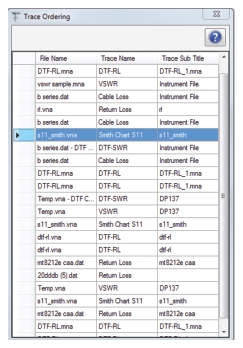
Trace Reporting Order allows you to rearrange the order of trace files that will be used in Line Sweep Generate Report. The reports to be used in Line Sweep Generate Report must be OPENED in measurement workspace.
Trace Ordering Dialog
1. Click Open… in the File Menu and select the desired trace files for report generation.
2. Click Reporting in the File menu followed by clicking on Trace Reporting Order.
• The Trace Order dialog opens.
3. Sort the files by File Name, Trace Name or Trace Sub Title.
4. Click on the desired category to sort the files in ascending order or descending order.
• You can also manually move an individual file’s order by highlighting it and dragging it to its new sequence order.
5. Press the X button in the top right corner of the dialog when done.
6. Generate a report. See Line Sweep Generate Report above.