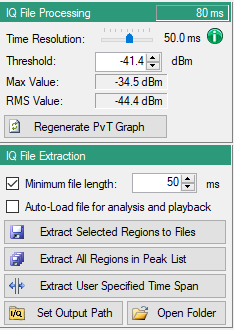
 | Time Resolution Provides a time resolution range of 50 µs, 100 µs, 250 µs, 500 µs, 1 ms, 2.5 ms, 5 ms, 10 ms, 25, ms, 50 ms, 100 ms, 250 ms, 500 ms, 1 s, 2.5 s, 5 s, and 10 s. Green Information Icon Resolution Setting. Press to display dialog shown. 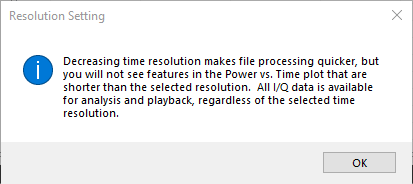 Threshold Set the power threshold for peak finding. Type or set the Threshold value into the Threshold box, or move the red line up or down in the PvT graph to set the threshold value. A change automatically triggers the peak finder and updates the list. Max Value The maximum power level detected in file data set. RMS Value The RMS value of measure points. Regenerate PVT Graph Reload the data file and process the IQ file stream at the set resolution. Press to activate edits in the time resolution window and display the updated data results in the power vs. time graph. Minimum File Length Check to extract and store selected channel peak regions, creating DGZ/DGZM files for each selected peak. Set the extraction field length for extraction from 60000ms to 10ms. Files can be opened in Playback menu. Auto Load-file for analysis and playback Press to load entire file for normal playback. Normal pre-processing is skipped, which can affect on-screen scaling of data graphs. Extract Selected Regions to Files Click more than one peaks from the Peak Power Locations list. Extract IQ data for the selected peak regions, creating DGZ/DGZM files for each selected peak. Extract All Regions in Peak List Select a Extract all peak regions in the current peak list. Each region is extracted to an individual DGZ/DFGZM file set. Extract User Specified Time Span Extract a user specified time span by entering precise time offsets. Click to enter the precise time in the dialog shown below. Check Load File for analysis. Press Trim and Close to trim file to set size. 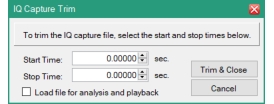 Set Output path Set the output folder for extracted files. Open Folder Open the output folder in Windows. |