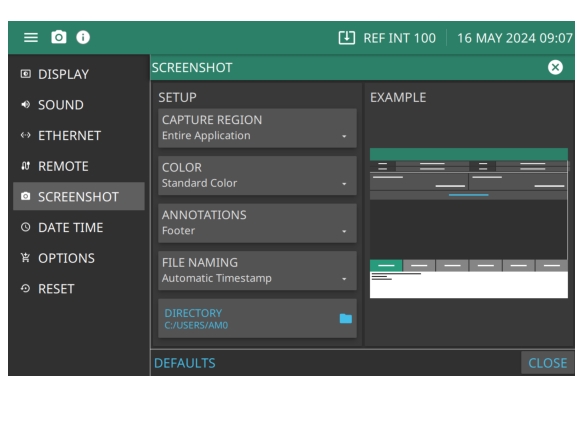
May be placed at top (header) or bottom (footer) of captured image
FILE NAMING:
Set with Automatic Timestamp or Manual
DIRECTORY:
Directory path to destination folder where the file is to be saved
DEFAULTS
Resets parameters on this page to default values
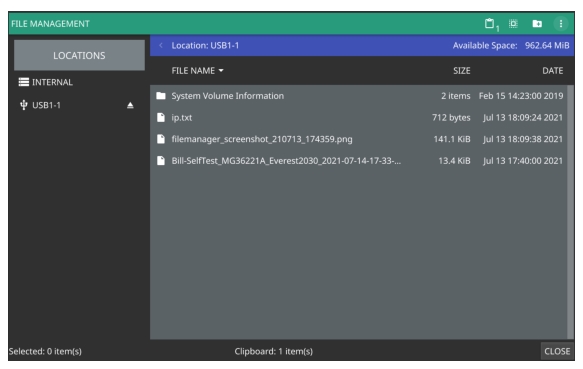
Previewing Screenshots
While in File Manager, you can preview screenshots on the instrument display simply by touching the screenshot file name. While the preview is displayed, you can use the controls to:
• Cycle forward and backward through each screenshot in the directory.
• Rename the file by selecting RENAME, then use the keypad to enter a new filename.
• Delete the file by selecting DELETE and then confirming your choice.
• Copy the file, then close the preview dialog and navigate to the desired location, then touch the Paste icon at the top of the File Manager.