Overlay allows you to compare up to ten traces of the same measurement type in a measurement plot. A warning dialog will pop up if ten traces are exceeded; the active trace plus nine overlay traces. Overlay trace colors can be set in the Graphs Color Options window. Because of the different types of handheld instruments, he Overlay feature will best reflect the Overlay Setup of that instrument.
1. Tile Vertically the measurement plots you want to compare.
2. Press the Overlay button in the Mouse toolbar.
3. Place the mouse cursor on the measurement trace you want to drag.
4. Hold either the left or right mouse button down.
• A small rectangle with a plus sign will be displayed below the cursor.
5. Drag the trace to the measurement plot that you want to compare.
6. Release the mouse button and the first trace will overlay on the second.
When overlaying traces with different x and y scale values the following is recommended. Overlay the trace with the smaller scale value onto the trace with the larger scale value.
Autoscale both traces
1. Hover your mouse on the graph,
2. Click the right mouse button.
3. Click Scale/Limit which opens the Plot Properties dialog with the Scale/Limit tab selected.
4. Press the Autoscale button.
5. Press OK.
Overlay the smaller scale trace onto the larger scale trace
1. Press the Overlay icon on the Toolbar
2. Place the mouse over the trace with the smaller scale value.
3. Hold down either mouse buttons and drag it onto the trace with the larger scale value.
Note
Not all trace types are compatible to overlay, such as the Smith Chart and Return Loss traces.
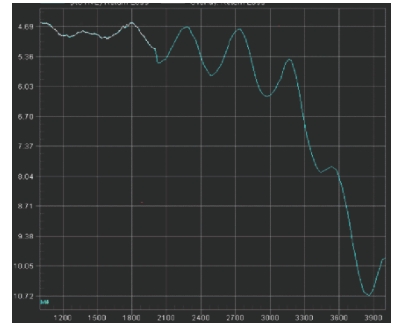
The example below shows a trace (white) with a scale value of 1000-2000 MHz overlaid onto a trace (blue) with a 1000-4000 MHz scale value.
Overlay Traces
Note
For measurements that have multiple trace overlays, only the primary overlay will be downloaded into LST.
Undo Overlay
Use this command to remove the trace or traces that were dragged onto a measurement plot for trace comparison. Regardless of the number of traces overlaid, only the last trace overlaid will be removed. Note: Undo Overlay is not for use with the PIM Master DTP Measurement with Trace Overlay.
1. Select the plot with the overlay so it is the active measurement plot.
2. Click Undo Overlay in the Edit menu or press the Alt+O keys on the PC keyboard.