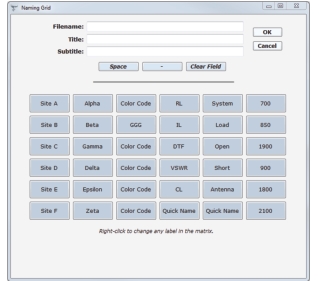
The Naming Grid is a method for creating preset Filenames, Titles, and Subtitles used in the measurement plot. Click Naming Grid in the Tools menu or press the Open Naming Grid button on the Naming Grid toolbar.
Naming Grid
Create a Filename, Title, and Subtitle
1. Place the cursor in the desired entry window – Filename, Title, or Subtitle.
2. Make an entry by typing the name on the keyboard or pressing the preset label buttons.
3. Use the Space button to add a space between two labels in the same entry window.
4. Use the (-) button to insert a dash between typed or labeled entries.
• All button entries are appended to the entry window.
5. Press the Clear Field button to remove names in the entry window or to clear any entries.
6. Press OK to save the Naming Grid preset Filename, Title, Subtitle, and preset button labels.
Use the Created Filename on Saved Files
1. Press the Use Filename from Naming Grid button. The feature is active and highlighted.
2. Click any of the Save commands in the File menu or Save on the toolbar. The Save an unsaved trace as a DAT file dialog opens with the created filename from the Naming Grid entered in the File name: entry window. Also, you can add to the name to differentiate similar files using the preset filename. Example Filename01, Filename02, Filename03…Filename10.
3. Press Save when done.
Change Preset Button Label
1. Place the cursor over a label button in the naming grid dialog.
2. Right click the mouse. An entry window opens.
3. Enter the new name in the box.
4. Press the Change button.
• The new name is changed and displayed on the button.