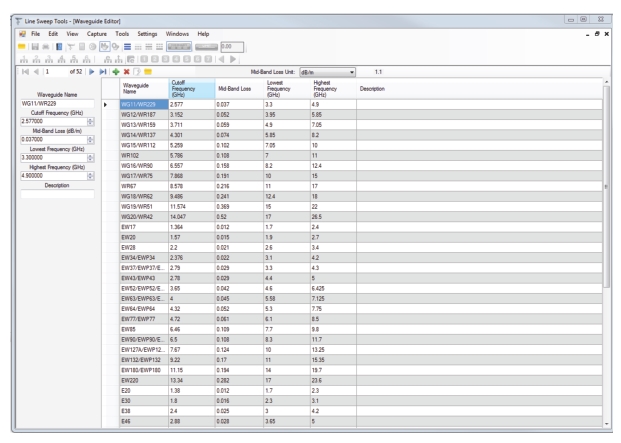
The Waveguide Editor allows you to edit or add to a waveguide file which contains definitions of multiple waveguides and waveguide parameters. You can also upload the new waveguide definitions into the instrument in use or save them locally on a PC.
Waveguide Editor
Create a Waveguide List
1. Click Waveguide Editor in the Tools menu.
• The Waveguide Editor opens with the parameter fields empty.
2. Press the Add New (+) button on the toolbar.
• The cursor moves to the empty field after the list of filled fields.
3. Enter the name of the waveguide and its parameters in the left column of entry windows in the Waveguide Editor.
• Clicking the new entry updates the value in the parameter matrix.
4. Repeat Step 2 and Step 3 until all waveguides have been entered.
5. Press the Export button on the toolbar to save the list locally on the PC.
Add a New Waveguide
1. Click Waveguide Editor in the Tools menu.
• The Waveguide Editor opens with the parameter fields empty.
2. Press the Open button on the toolbar.
• The Open a Waveguide List File dialog opens.
3. Highlight the desired waveguide file and press Open.
• The waveguide list and parameters are filled.
4. On the toolbar, press Add New.
• The cursor moves to the empty field after the list of filled fields.
5. Enter the name of the waveguide and its parameters in the left column of entry windows in the Waveguide Editor.
• Clicking the new entry updates the value in the parameter matrix.
6. Repeat Step 4 and Step 5 until all waveguides have been entered.
7. Press theExport button on the toolbar to save the list locally on the PC.
Edit/Change an Existing Waveguide’s Parameters
1. Click Waveguide Editor in the Tools menu.
• The Waveguide Editor opens with the parameter fields empty.
2. Press the Open button on the toolbar.
• The Open a Waveguide List File dialog opens.
3. Highlight the desired waveguide file in the list.
4. Press the Open button.
5. Scroll to the desired waveguide or enter the number of the waveguide in the entry window.
6. Enter/change the parameter values for the existing waveguide.
• Clicking the new entry updates the value in the parameter matrix.
7. Press the Export button on the toolbar to save the waveguide list locally on the PC.