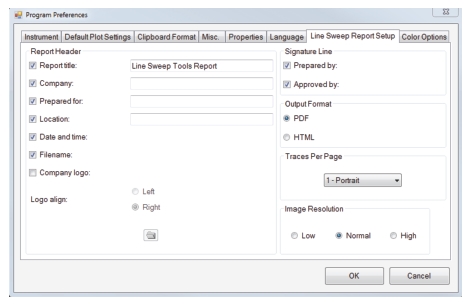
This dialog sets the parameters of the generated report that includes Report Header, Signature Line, Output Format, Traces Per Page and Image Resolution.
Line Sweep Report Dialog
Click Line Sweep Report Setup in the Settings menu.
Report Header
Select the desired header text to be displayed on the report.
• If Report title, Company, Prepared for, and Location are selected, enter their respective labels.
• If Company logo is selected, import the logo into the program and set the logo alignment to the left top corner or right top corner of the report by click Left or Right.
• The logo should be 80 pixels wide by 40 pixels high to fit on the report. Image can be saved in the following formats - PNG, BMP, GIF, or JPG.
Signature Line
Select the desired signature line/s by checking the appropriate box – Prepared by:, Approved by:.
Output Format
Select the desired output format PDF or HTML. To view the PDF file, you need a PDF file viewer.
Traces Per Page
The report can be printed multiple ways:
1. Select:
1– Portrait: to have one plot printed in the portrait view.
1– Landscape: to have a single plot printed in landscape view on a single page.
2 – Portrait: to have two plots printed on a single page top and bottom.
4 – Portrait: to have four plots printed on a single page top and bottom.
2. Press OK when done.
Image Resolution
Select the desired PDF output image resolution - Low, Normal or High.