Use the following procedure to upload the HTTPS SSL Certificate
Upload Procedure
To retrieve information about the certificate being used, the following SCPI command can be used :SYSTem:SSLCertificate?
This command reports information about the SSL certificate being used by the web server to support HTTPS connections. The information will be returned in JSON format and will consist of the following fields:
1. Start Date("notBefore"): When the certificate was generated.
2. End Date("notAfter"): When the certificate will expire.
3. Country("C"): Country of origin
4. State("ST"): State of origin.
5. Location("L"): City of origin.
6. Organization("O"): Organization of origin.
7. Organizational Unit("OU"): Department of origin.
8. Common Name("CN"): Associated host name.
All fields will be populated into a JSON array. The resulting response will be similar to the following:
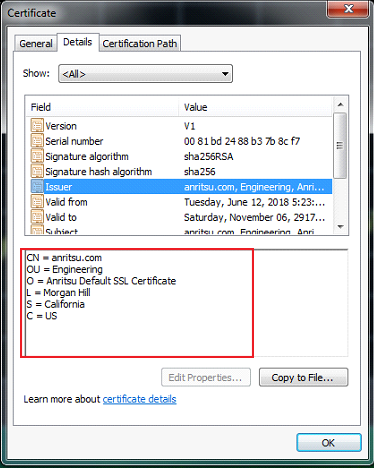
For the default self-signed certificate that the instrument will automatically generate when no user certificate is available, the Organization field will be set to "Anritsu Default SSL Certificate". An example of the certificate data is shown below for the default self-signed certificate:
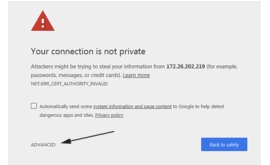
When no custom user SSL certificate has been uploaded to the instrument, the instrument will generate a self-signed certificate. Since the certificate is self-signed, browsers will warn that the certificate is invalid due to the ERR_CERT_AUTHORITY_INVALID error. Even though this is true, connecting to the instrument even with an invalid certificate will still use a secure connection. The initial attempt to connect to the web server through HTTPS with a self-signed certificate in a Chrome browser will display the message shown in Figure: Click ADVANCED.
Click ADVANCED
Click ADVANCED.
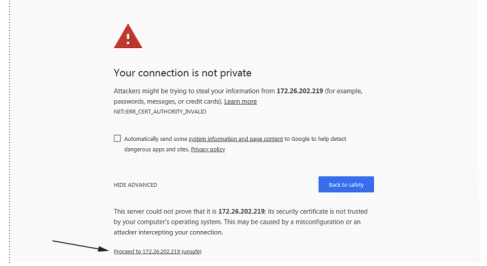
To connect with a self-signed certificate, click “Proceed to <ip_address> (unsafe)” as shown in Figure: Click Proceed.
Click Proceed
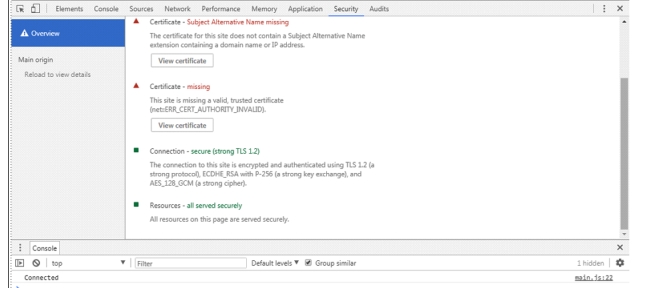
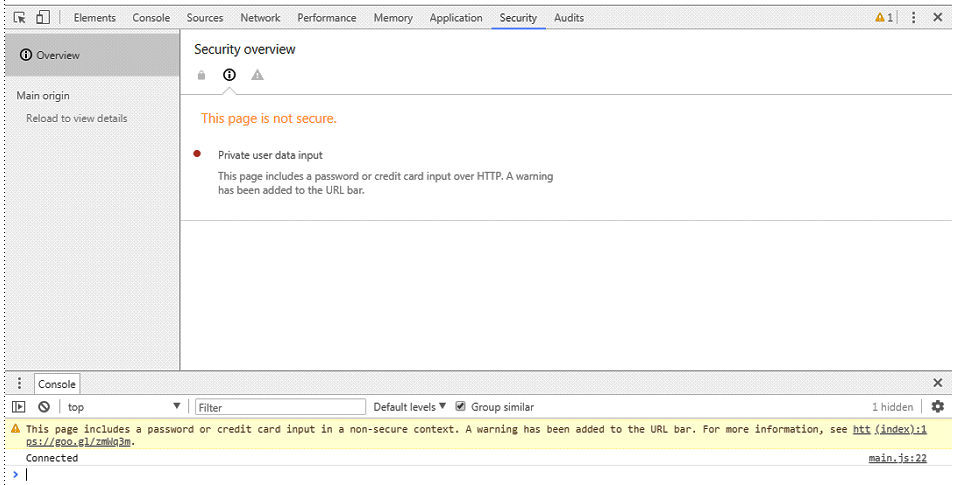
After clicking Proceed, the web server page should come up and show the instrument sweeping. The Chrome developer tools displays the certificate is invalid, but the connection is secure as shown in Figure: Click View Certificate.: