 |
|
ICON | Description |
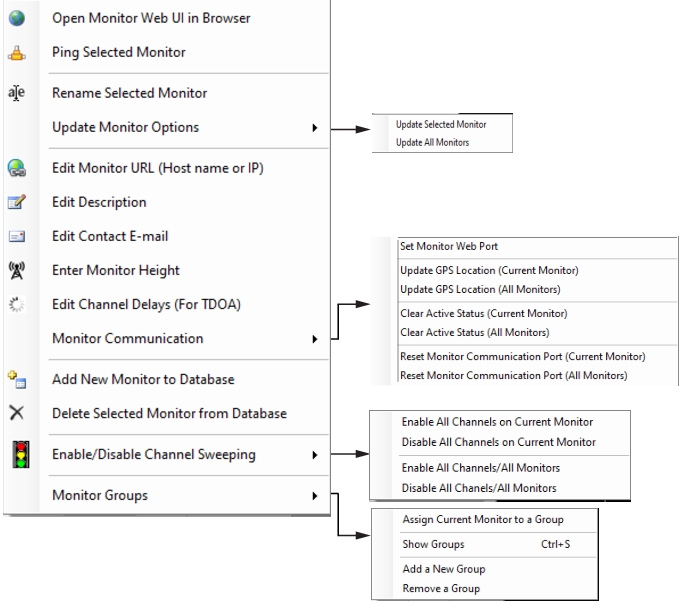
 | Open Monitor Web UI in Browser Opens the Installed Web Browsers dialog to choose either Chrome or IEXPLORE.EXE. |
 | Ping Selected Monitor Establishes communication with the Spectrum Analyzer. The Vision Ping dialog opens displaying the reply information from the Spectrum Analyzer. |
 | Rename Selected Monitor Opens the Edit Base Station dialog to change the label of the selected Spectrum Analyzer. Enter a new name in the entry box. |
 | Retrieve and Update GPS Location Does an immediate query to the Spectrum Analyzer for updated GPS location. |
 | Update Monitor Options Click to update any changes in options. A dialog will pop up stating: • Update Monitor – Updates and lists the active Spectrum Analyzer. • Update All Monitors – Displays dialog describing which Spectrum Analyzers have been successfully updated or will list which Spectrum Analyzers have not been updated. |
 | Edit Monitor URL (Host name or IP) Opens the Edit Base Station URL dialog to change the URL of the selected remote Spectrum Analyzer. Enter a new URL in the entry box. |
 | Edit Description Opens the Edit Base Station Description dialog to change the description of the selected remote Spectrum Analyzer. Enter a new description in the entry box. |
 | Edit Contact E-mail Opens Edit Base Station Contact dialog to add or change the e-mail address to those monitoring this base station. Add or change the e-mail address in the entry box. |
 | Enter Monitor Height Opens the Monitor Height dialog to add or to change the height location of the selected remote Spectrum Analyzer. Enter the new height in the entry box. Units are in meters. |
 | Edit Channel Delays (For TDoA) Opens a User Interface for entering channel delays. 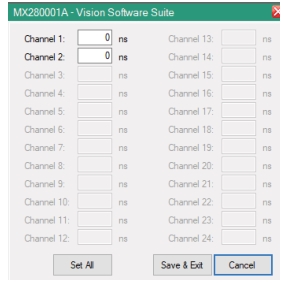 |
Monitor Communication Click a menu: • Set Monitor Web Port: Opens the HTTP port # dialog. Enter the HTTP port number for this remote Spectrum Analyzer. If assistance is needed in obtaining this port number, contact the person setting up the network for remote spectrum monitoring. • Update GPS Location (Current Monitor) • Update GPS Location (All Monitors) • Clear Active Status (Current Monitor) • Clear Active Status (All Monitors) • Reset Monitor Communication Port (Current Monitor) • Reset Monitor Communication Port (All Monitors) | |
Clear Active Status A spectrum analyzer in use sets an internal flag that marks the spectrum analyzer as busy and is cleared when not in use. Users should not attempt to use the spectrum analyzer for measurements until the flag is cleared. There may be times when a process fails to clear the Active flag and the spectrum analyzer will report as busy until the flag is cleared. When no users are accessing that spectrum analyzer, use this menu option to clear the Active flag so that the spectrum analyzer can be accessed freely. | |
Reset Monitor Communication Port Reset the Ethernet port using this menu option. Note: If someone is using the spectrum analyzer to perform a long term measurement, the SCPI port will appear blocked; therefore this function can corrupt someone else’s measurement. A symptom of a blocked SCPI port: The spectrum analyzer interface is displayed in browser view, but no measurements/sweeps are shown. | |
 | Add New Monitor to Database The Create New Base Station dialog opens to enter information for the new database. Fill in the entries and click OK. The new Spectrum Analyzer is listed on the Base Station and Channel Directory. |
 | Delete Selected Monitor from Database Allows you to delete a base station from the directory. |
 | Enable Sweep on All Channels / Disable Sweep on All Channels Click a menu: • Enable All Channels on Current Monitor • Disable All Channels on Current Monitor • Enable All Channels/All Monitors • Disable All Channels/All Monitors Enables data collection for each channel on a Spectrum Analyzer. This can be done one at a time by clicking on the 'Unlock sweep parameters' check box, then checking the check box for 'Automatically Spectrum Analyzer this channel'. Enable Sweep on All Channels is a quick way to do all channels on a Spectrum Analyzer at once, rather than the tedious process of enabling each separately. Disables data collection for all channels on a Spectrum Analyzer. This can be done one at a time by clicking on the 'Unlock sweep parameters' check box, then clearing the check box for 'Automatically Spectrum Analyzer this channel'. Disable Sweep on All Channels is a quick way to do all channels on a Spectrum Analyzer at once, rather than the tedious process of disabling each separately. |
Monitor Groups | Monitor Groups Click to open the groups submenu. Click the appropriate command shown below: • Assign Current Monitor to a Group: Add a Spectrum Analyzer to a group. • Show Groups: Display the list of groups. • Add a New Group: Add a new group to a current list or start a new group. • Remove a Group: Remove a group of Spectrum Analyzers from the list. Monitors can be assigned into groups. Groups are used only to visually arrange the Spectrum Analyzers so that associated Spectrum Analyzers are together in the Spectrum Analyzer list. By default, the Spectrum Analyzers are listed in the order they are entered into the database. To place the Spectrum Analyzers in groups, use the Spectrum Analyzer context menu to add and assign groups. You also must toggle the Show Groups setting on to see the grouped Spectrum Analyzer list. Individual groups can be collapsed or expanded to easier view just the Spectrum Analyzers that are of interest at a particular time. For more on Spectrum Analyzer groups, see Base Station and Channel Directory. |