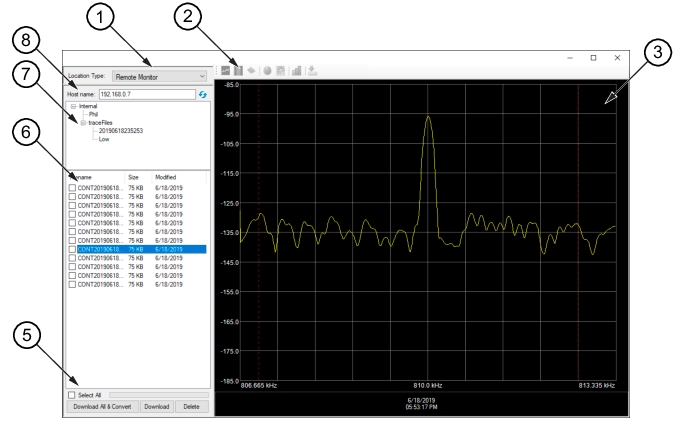
2. Toolbar -Unavailable in this Remote Monitor Mode.
3. RF Sweep Screen
4. Status
5. File Management
6. Monitor File List
7. Hardware Monitor Folder Window
8. Host Name Field
Remote Monitor View
Click the Location Type button and select from the list.
Toolbar
The Trace View toolbar is unavailable in spectrum analyzer view.
RF Sweep Screen
Displays the selected spectrum analyzer’s trace sweep.
Status
Shows the RF sweep date and time collected, Channel Power, Marker and Delta Marker details when the markers are active.
Spectrum Analyzer File Management
Click Download All and Convert, Download, or Delete spectrum analyzer files.
Spectrum Analyzer Files
Displays a view of the spectrum analyzer files log.
Remote File Folder Window
Shows the folder contents.
Host Name
displays the Host name dialog as shown in Figure: Host Name Enter Button. Type a Host Name or URL of the spectrum analyzer to view and press the enter button.
Host Name Enter Button
File Management Panel
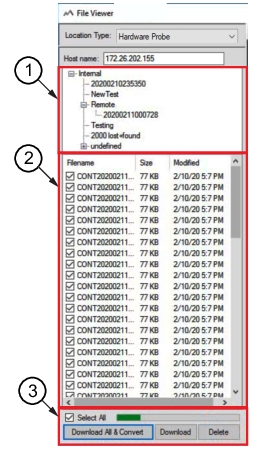
Refer to Figure: Spectrum Analyzer Folder Panel. In the spectrum analyzers view, the file management panel displays the recent folders and measurement files.
Spectrum Analyzer Folder Panel
1. Recent Folders and Files
2. Spectrum Analyzer Measurement List
3. File Management
Recent Folders and Files
The file window shows the user created file folder (Remote) and the spectrum analyzer time-stamp folder. The folder name and placement is user selectable. When a new time-stamp folder is program created, if another user created location is used, the program selected file will be deleted.
Remote Measurement File
Displays the spectrum analyzer measurement files list. Click on the desired spectrum analyzer file to view.
File Management
Contains the folder control commands.
• Select All: Click the check box of a specific spectrum analyzer file or the Select All check box to download files to a local drive.
• Delete: When active, the file folder will be deleted from the Remote Folder when opened and a new time-stamped folder will be created. When not active (grayed) the folder will be added to the Remote folder list when the files are loaded.
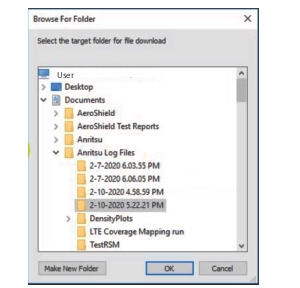
• Download: Opens the Browse For Folder box as shown in Figure: Browse for Folder Box. The program will highlight a suggested folder to store the files into. If the Make New Folder button is pressed, the suggested file that is highlighted will be removed.
• Download All & Convert: Performs the same function as Download, but also converts the files and displays a CPM view. This button does the following, in sequence:
1. Downloads the spectrum analyzer files from the designated spectrum analyzer.
2. Deletes (optional) the spectrum analyzer files from the spectrum analyzer, and cleans up the containing folder.
3. Combines all spectrum analyzer files downloaded into a single .cpm measurement file.
4. Switches views and opens the .cpm file, automatically displaying the most recent sweep trace.
5. Turns on Max Hold and Min Hold in the current trace view. The progress bar shows the file conversion status. The download time depends on the number of files to be downloaded, and on the network bandwidth available between the PC and the spectrum analyzer.
When the process is complete, you will see a CPM view displaying a spectrogram and the last sweep trace in the file set. The CPM view is described in CPM Measurement File.