The MX280005A software requires a node-locked license or a USB dongle for use of the IQ Player and IQ Converter applications.
Licensing Option Requirements
The licensing requirements for the following options are described in Table: Licensing Requirements. To enable vector signal analysis, the spectrum analyzer must have Option 128 installed. Contact the Anritsu Service Center in your area for more information.
This license is delivered by email and provides a numeric key that enables the features on a single specified PC. This license is not transferable and if the specified PC is lost, a new license for the new PC must be purchased.
Note
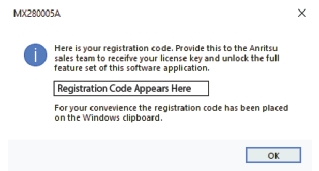
The end user's email address AND a generated PC registration code must be provided to enable the generation and delivery of the PC node locked license. A voucher will be shipped with the order so that the license can be redeemed once these details are available. Instructions for obtaining the PC registration code are available at the following Anritsu web page:
1. Download and install IQ Signal Master MX280005A software onto the target PC that will be used to run the licensed software.
Note
Microsoft .NET framework 4.8.1 must be installed on your PC. If .NET 4.8.1 is not present, the MX280005A software installer will prompt you to install this framework. In some Windows installations, there may be a file missing called vcredist_x64.exe. This file is part of the Microsoft Visual C distribution. To use the MX280005A software, you may need to download and execute this file.
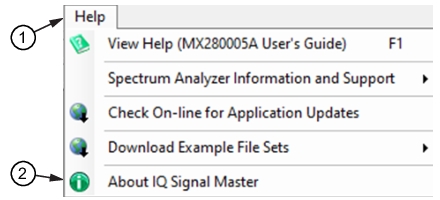
2. Launch IQ Signal Master and open the About IQ Signal Master dialog from the Help menu as shown in Figure: Help Menu. .
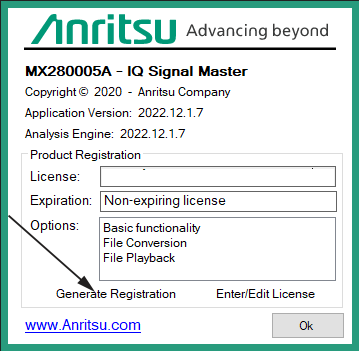
6. When you receive your license key, launch IQ Signal Master and open the “About IQ Signal Master" dialog from the Help menu to display the Licensing dialog shown in Figure: Licensing Dialog.
Licensing Dialog
7. Press Enter/Edit License and enter the License key into the License field.
The USB Dongle License Key format
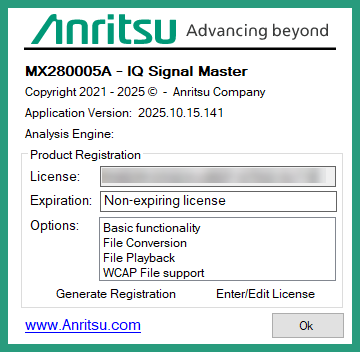
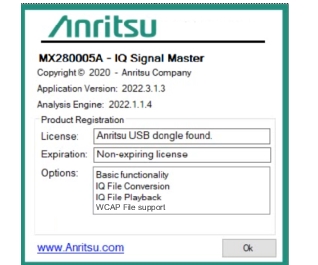
The PC license is delivered in the form of a physical USB dongle. The licensed features will run on any PC that has the USB dongle inserted at the time of use. This means the software can be inserted on multiple PCs but will only run at any moment in time on the PC that has the dongle inserted. Removing the dongle will immediately disable the licensed features on the PC it was removed from. If the USB dongle is lost, a new license key dongle must be purchased. The Dongle registration is shown in Figure: Dongle Dialog.