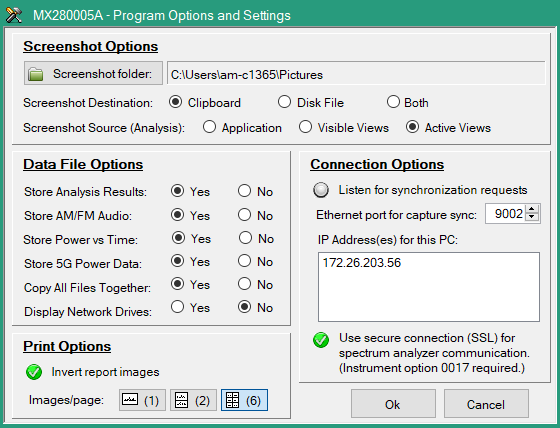
Open to browse to a folder location to store the screenshots. Screenshot Destination
Select store to Clipboard, Disk File, or Both. Screenshot Source (Analysis)
Screenshot Source provides:
Application: Screenshot includes full application in Analysis mode. Visible Views: Screenshot includes visible measurements only in Analysis mode. Active Views: Screenshot includes all active measurements in Analysis mode.
Data File Options
Store Analysis Results
Set Yes, reopening a file will load results without the need to do the modulation analysis again. Set No, reopening a file will require the analysis to be performed again to see the results.
Store AM/FM Audio
Set Yes, store AM/FM results when extracting multiple audio signals from a wideband capture in Playback menu. Set No, does not store audio output. Must re-do signal extraction and demodulation to recover results if a file is opened later.
Store Power vs Time
Set Yes, files will be loaded more quickly when opened again. Set No, a reloaded data file will take longer for initial processing.
Store 5G Power Data
Set Yes, files will be loaded more quickly when opened again. Set No, the spectrogram will need to be regenerated if the file is loaded again.
Copy All Files Together
Set yes, when selecting a file for copying, all related files will be added to the Windows clipboard so they are copied together. Set No, when selecting a file for copying, only include the data and meta-data files, not analysis result and quick load support files.
Display Network Drives
Set yes, connect network drives for display and file access in the application File Browser screen. Set No, does not connect network drives for display and file access in the application File Browser screen. Connecting to network drives can slow down the application load time.
Connection Options
Provides synchronized captures across several PCs running IQ Signal Master, each with its own connected SPA. Each IQ Signal Master has to have the "Listen for Synchronization requests" option turned on in order for it to hear and respond to the synchronized IQ capture requests.
Listen for synchronization requests
Check the radio button to synchronize captures across several PCs running IQ Signal master, each with its own connected SPA. To synchronize, all PCs involved must have the Listen for synchronization requests checked and have the same Port number setting.
IP Addresses for this PC
The current PC IP address or multiple IP addresses are shown if the PC is on multiple networks. Click an address to copy to the Windows clipboard. Identify the spectrum analyzer IP address by accessing the spectrum analyzers network configuration screen. To access the spectrum analyzer network access screen:
• Press the System menu (3-line icon on the upper left corner)
• Press System Information
• View the IP address on the Connectivity panel. Note the IP address may change once the spectrum analyzer is powered off and on again.
If multiple addresses are shown on the IQ Signal Master Connection Options screen, select the IP address that most closely matches the spectrum analyzer address. This can be identified by the first three numbers which are the same as the spectrum analyzers’ IP address.
Use secure connection (SSL) for spectrum analyzer communication (Instrument Option 0017 required)
Select this radio button to successfully connect to the spectrum analyzer that is installed with Secure Communication, Option 17.
Print Options
Invert images
Inverts black and white image scheme for printing. Press an Images/page icon to set the number of images per page as one, two or six.