The Automatic Level Control (ALC) system is a feedback power level control system. An ALC system controls the amplitude and power level of the RF output. The output power is measured at an internal detector and compared with the expected power level. If the output and desired power levels are not equal, the ALC circuit adjusts the power level until they are equal. The output power can also be set to a fixed level without using the normal feedback (ALC off).
This menu provides manual setting of the ALC Range for External Closed and Open Fixed Loops. This setting is used to configure particular ALC HW for either a High or Low user requested ALC range configuration. See Setting LEVEL DAC.
ALC Menu
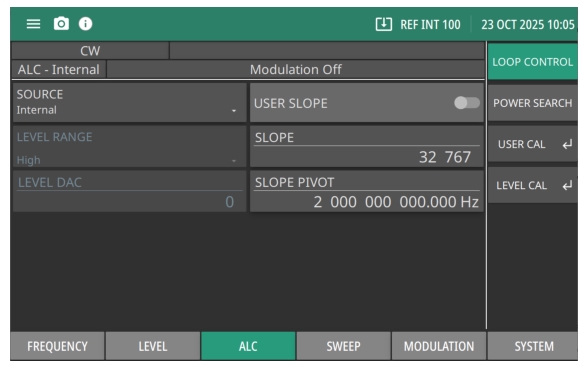
You can select the ALC mode of operation—internal or fixed gain (ALC off). In addition, the signal generator provides a decouple function that allows decoupling of the step attenuator (if equipped) from the level setting. The ALC LOOP CONTROL settings menu is shown in Figure: ALC Menu - Loop Control.
ALC Level Modes
Press the ALC menu from the main menu to set the ALC level mode by choosing either Internal, External or Fixed Gain from SOURCE drop-down as shown in Figure: ALC Menu - Loop Control.
• Fixed Gain: Leveling source is Fixed. See Setting Fixed Gain. LEVEL DAC control is available in when SOURCE Fixed Gain is selected.
LEVEL RANGE
Manual setting of the ALC Range for External Closed and Open Fixed Loops. Not available when SOURCE is set to Internal.
LEVEL DAC
Enabled In Fixed Gain Mode Only. Range is 0 to 65535.
USER SLOPE
Set the user slope function to on or off.
SLOPE
Set the power slope. Slope Adjustment range is 1 to 16383. See ALC Power Slope.
SLOPE PIVOT
Set the slope pivot frequency point.
Setting Internal Leveling
This is the normal default leveling mode. Output power is sensed by the MG362x1A’s internal detector. The detector output signal is fed back to the ALC circuitry to adjust the output power level. Internal ALC is selected from the leveling menu.
To select internal ALC, press Internal. Pressing one of the other leveling menu soft keys External Detector or Fixed Gain will turn off internal leveling.
Setting External Leveling
In external leveling, the output power from the MG362x1A is detected by an external detector or power meter. The signal from the detector or power meter is returned to the ALC circuitry via the rear panel EXT ALC IN connector. The ALC adjusts the output power to keep the power level constant at the point of detection. To select the external ALC input from an external detector, press ALC | SOURCE External.
Setting Fixed Gain
In the fixed gain mode, the ALC is disabled. The RF level DAC and step attenuator (if installed) are used to control the relative power level. Power is not detected at any point and the absolute power level is uncalibrated. After fixed gain mode is selected, the attenuator (if installed) is decoupled and the RF level DAC value is displayed.
ALC Power Slope
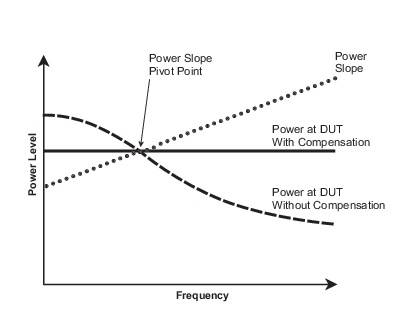
The ALC power slope function lets you compensate for system, cable, and waveguide variations due to changes in frequency. This is accomplished by linearly increasing or decreasing power output as the frequency increases. The example shown in Figure: ALC Power Slope Example, displays how the power slope function provides you with the ability to set both the power slope and the pivot point. The ALC loop menu lets you activate the ALC power slope function.
ALC Power Slope Example
Setting LEVEL DAC
Manual setting of the LEVEL DAC. This setting is used in conjunction with the manual attenuation setting to allow user control of the output power when in ALC Fixed Gain selection. The RF level DAC adjustable range is from a minimum output of 0 to a maximum output of 65535. To select the Fixed Gain ALC input from an external detector:
Press: ALC | SOURCE | Fixed Gain
Edit the level DAC by pressing LEVEL DAC, and use the control keys, rotary data knob, or enter a new power level DAC value using the keypad and press ENTER.
Setting Level Range
Used when the SOURCE is set to External or Fixed Gain. Sets all the Digital Step Attenuators in the Digital Down Converter, Switched Filter Module, and Frequency Extension Module to 0 for High Range and 10 for Low Range. Can be used when the RF step attenuation is manually set to 0 dB, allowing for a 10dB extension of range in high level range.
3.
4.
5. Press USER CAL submenu, and select any one of the power-offset tables (User 1 to User 10) from TABLE drop-down. See
6. Press START and STOP buttons to enter the start and stop frequencies of the connected device (e.g. amplifier, switch).
7. Press POINTS to enter the number of frequency points at which correction information is to be taken.
8. If any frequency scaling is necessary at the leveling point, press MULTIPLIER and enter the scaling factor. The range is 0.1 to 100.
9. If offset appears at the leveling point, press OFFSET and enter the offset frequency.
10. Now press START CALIBRATION to begin taking the power level correction information at each frequency point.
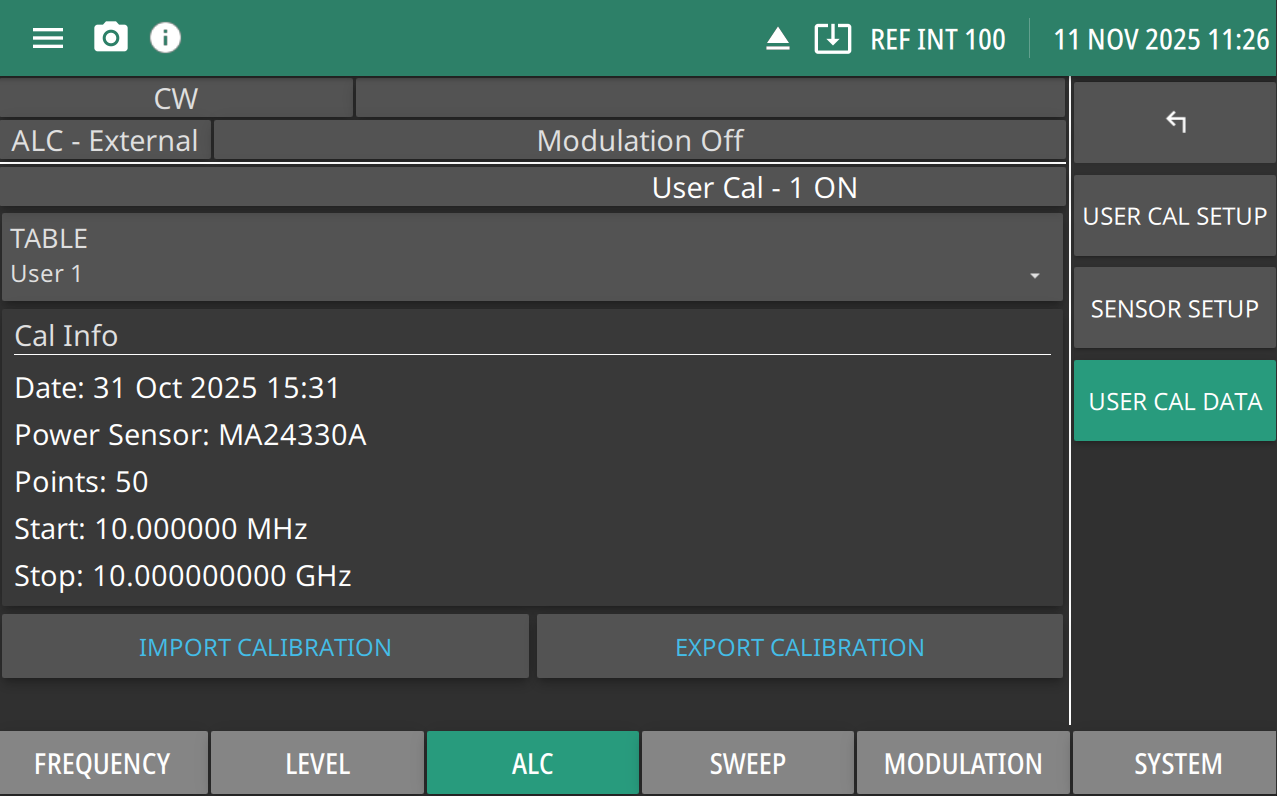
11. Turn on STATE toggle in order to apply the power-offset table. Note that when the State toggle is turned on, User Cal - 1 ON will be displayed on the top. See The number displayed depicts the selected user cal table, in this case it is User 1 table.
Once the power-offset table has been created, it is stored in the instrument’s non-volatile memory. The power-offset table is now ready to be applied to the test setup. Disconnect the power sensor from the test setup.
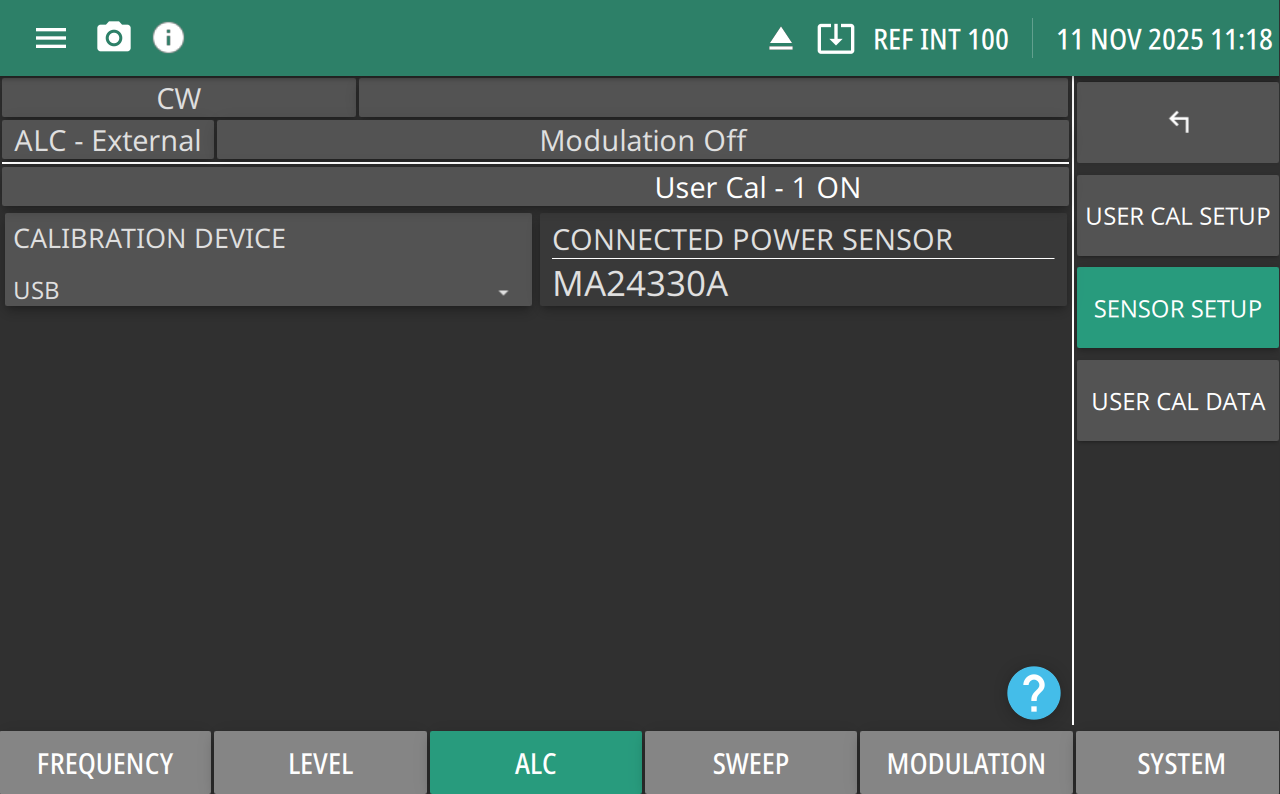
SENSOR SETUP
The sensor setup window displays the USB power sensor connected to the instrument as shown in Figure: SENSOR SETUP Menu.
SENSOR SETUP Menu
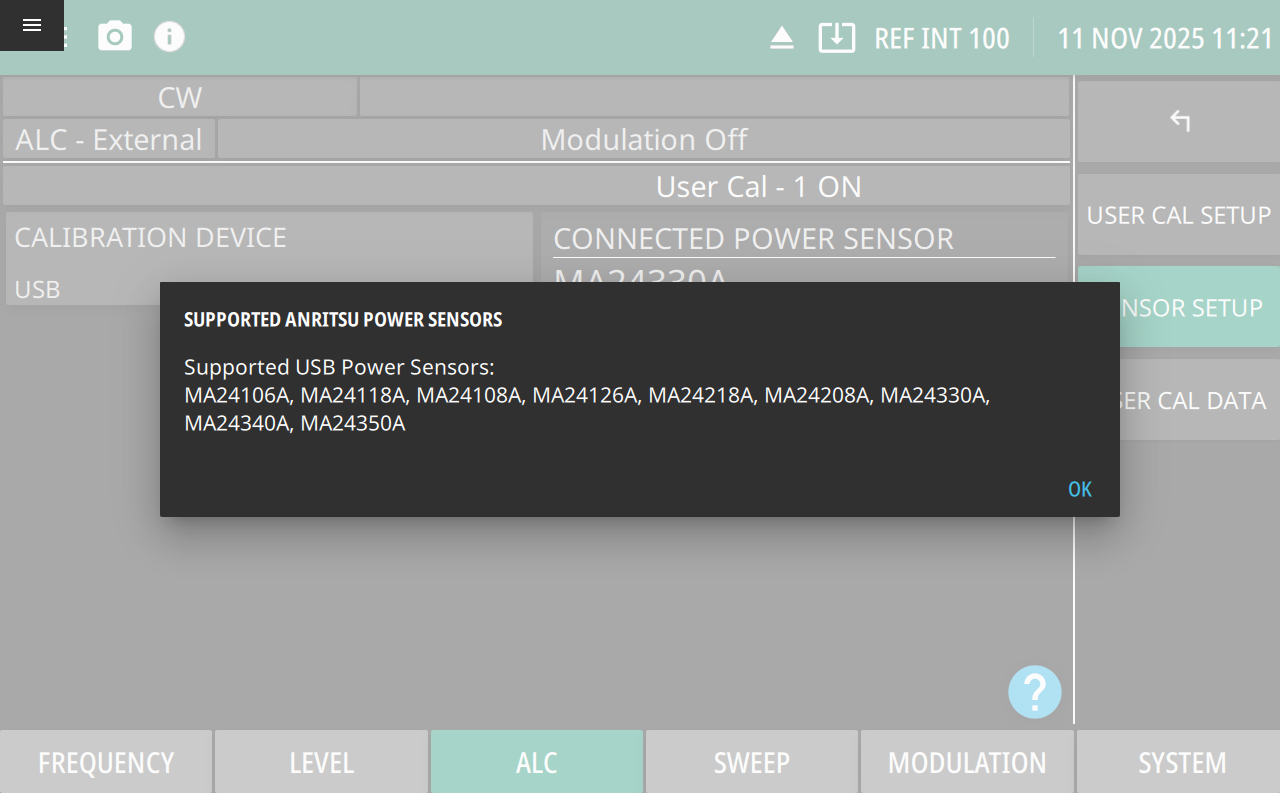
To get a list of supported USB Power Sensors use the following SCPI command:
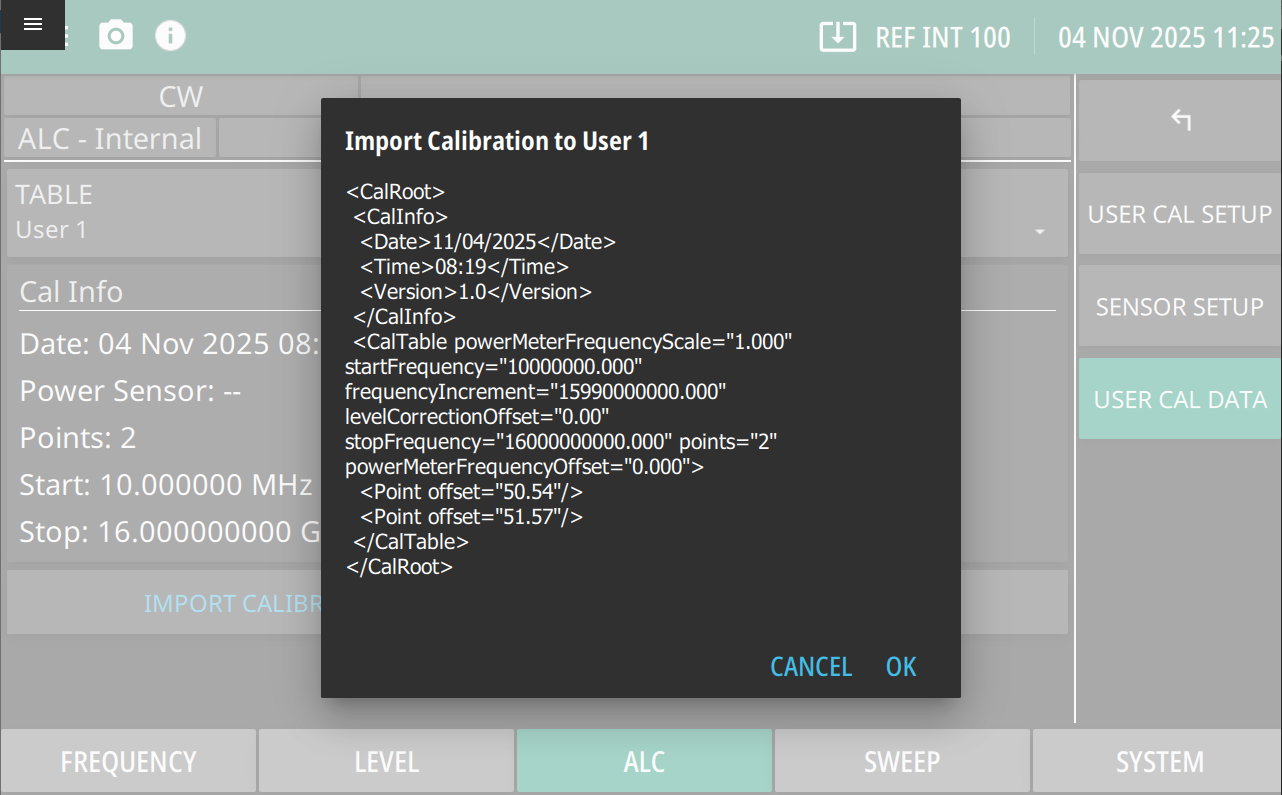
The USER CAL DATA window displays the currently selected user table and calibration info as shown in Figure: USER CAL DATA Menu. Press IMPORT CALIBRATION button to import an already saved calibration file to the currently selected user table as shown in Figure: IMPORT CALIBRATION Dialog. Press EXPORT CALIBRATION button to export the calibration data and save as a .ulc file. Note that the calibration file can be either saved internally in the instrument memory, a USB memory device or an SD card.