1. Access the System menu (3-line icon in the upper left corner).
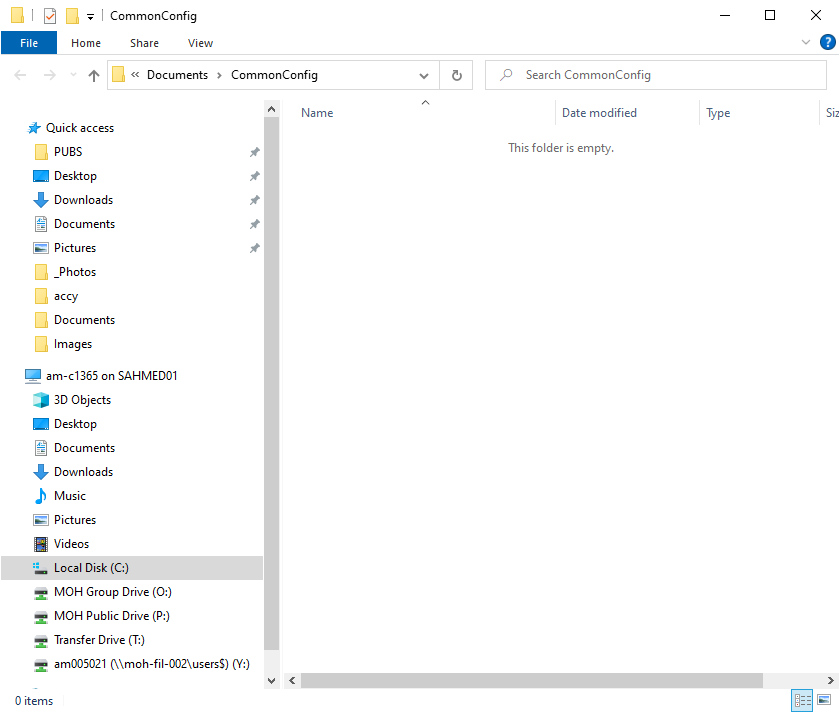
2. Select FILES to access the local PC file system by opening the Windows file explorer.
Files Menu
Note
To access the target file system, the user requires the use of the SCPI commands or an FTP client.
FTP Access
An FTP server has been included in the instrument to allow direct access to files stored on the instrument (or on a USB memory device connected to the instrument) from a remote computer. To access the FTP server:
1. Connect the instrument to a network.
2. Use an FTP client of choice (such as Windows Explorer or File Explorer) and enter “ftp://” and the IP address of the instrument as the host. For example: ftp://172.155.1.2
3. Enter the user name: ftp
4. Enter the password: serial number of the instrument The serial number can be obtained from the System Information menu or through SCPI using the "*IDN?" command.
File Transfer
File transfer menu enables the capability of saving the instrument files to your local PC. Follow the steps below to save the internal files:
1. Access the System menu (3-line icon in the upper left corner).
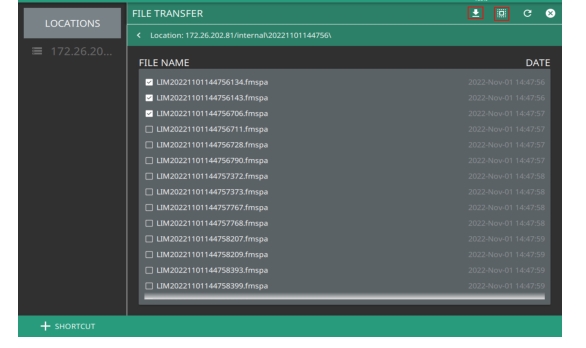
2. Click FILE TRANSFER to view the list of internally saved files for e.g. screenshots. See Figure: File Transfer Menu.
3. Click the desired file from the list to save it locally on to your computer.
4. To save multiple files, click the multi-select icon on the upper right and select the desired files as shown in the figure below.
5. Click Download icon to open the Windows File Explorer and choose the desired location to save the files locally to your PC.