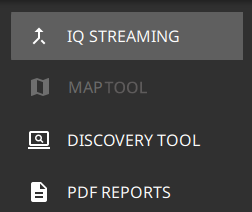
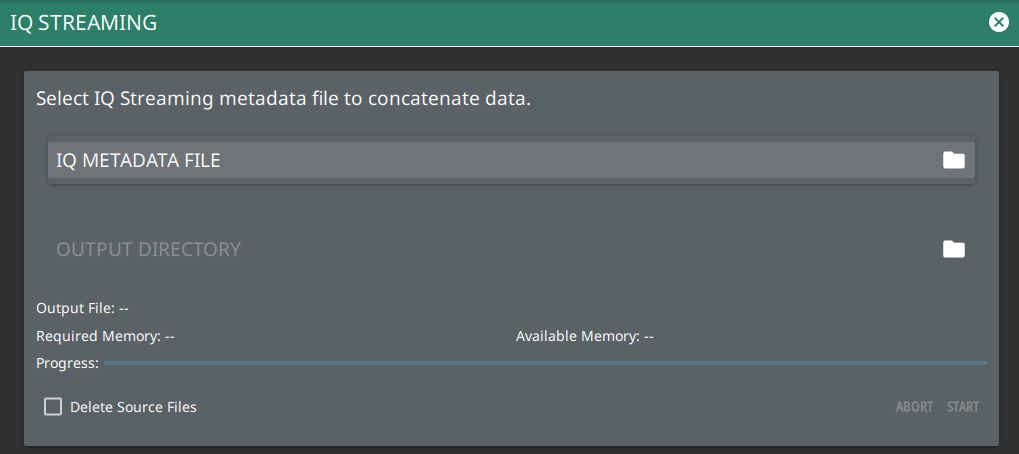
The IQ STREAMING menu allows you to concatenate an existing IQ metadata file (.dgzm) with a session of IQ data files (.dgz) that were streamed to a USB device after the stream operation is complete. The data files must all come from the same stream session.
IQ STREAMING Menu
1. Select IQ METADATA FILE and then select the file that you wish to concatenate with IQ data streams. All of the data stream files in the selected directory will be concatenated with the metadata file.
2. Select the OUTPUT DIRECTORY and select the destination for the concatenated files. If desired, select Delete Source Files.
3. Select START to begin the concatenation. The progress bar will indicate relative progress.
4. Select ABORT to abort the concatenation process.
Note
Concatenating files can be time consuming depending on the streaming parameters and time. The process can be much faster if performed on a PC using the MS27201A ARRT software. Refer to ARRT Software for details on using this application.
DISCOVERY TOOL
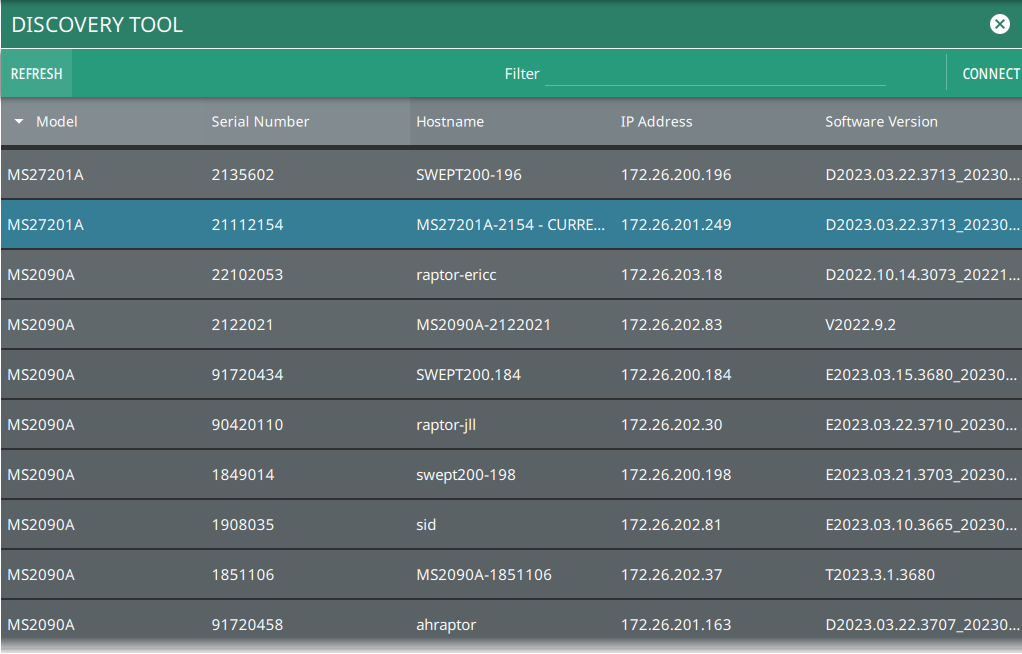
The DISCOVERY TOOL menu displays all the compatible units on the local network and allows to connect with any one of the instruments.
Select on the desired model and select CONNECT to connect with that instrument.
Discovery Tool
Refer to the instructions as described in UDP Discovery Tool Firewall Settings, to modify the computer’s firewall settings if the Discovery Tool is not responding.
PDF REPORTS
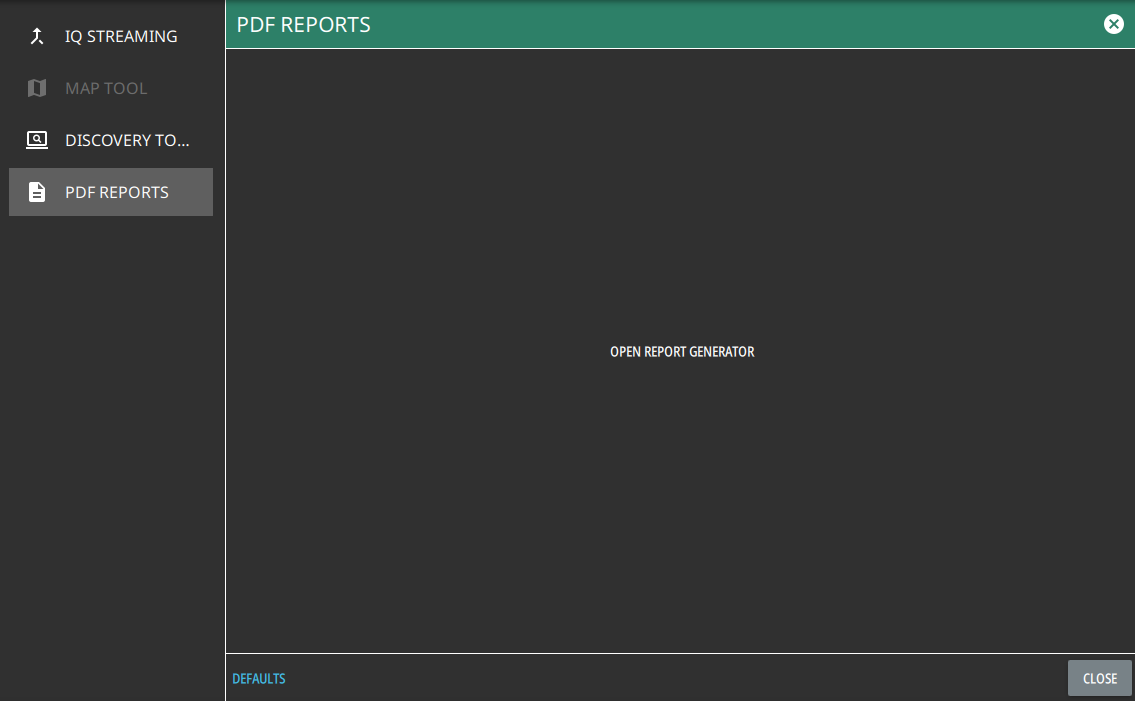
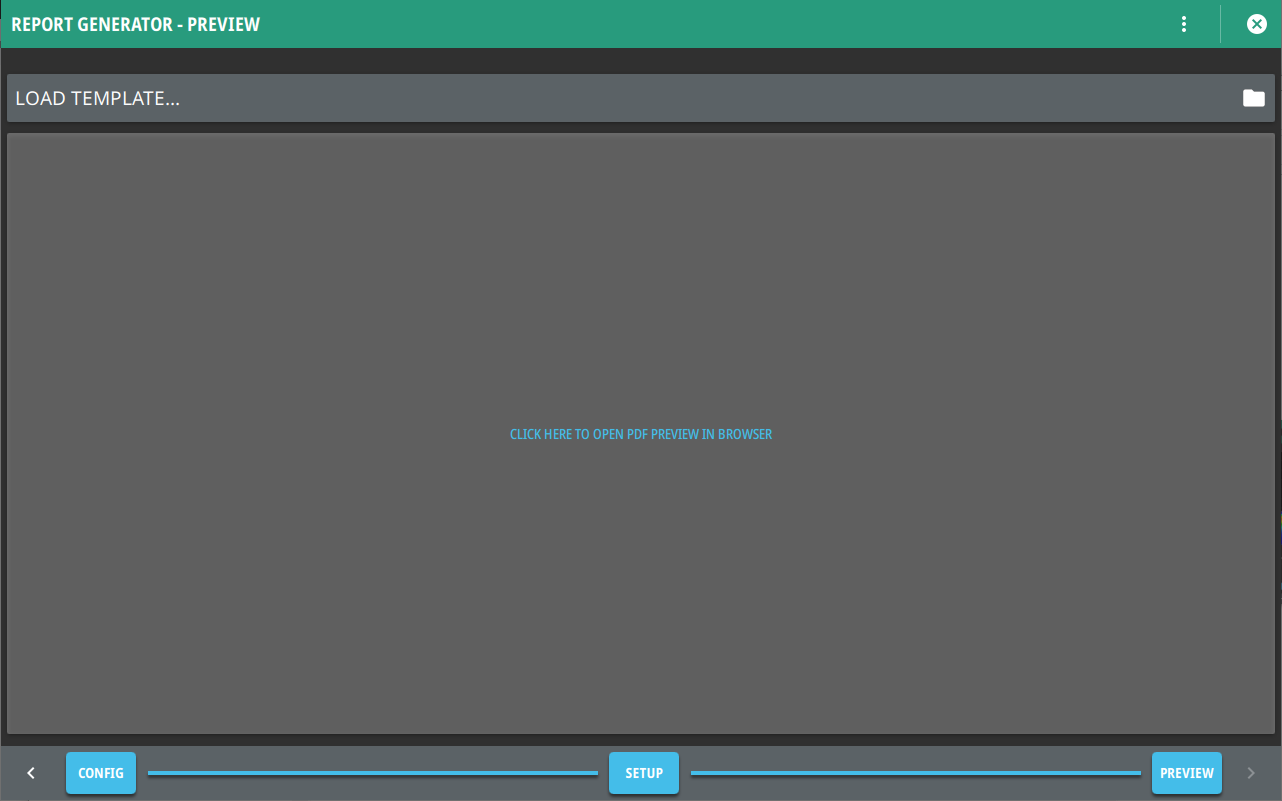
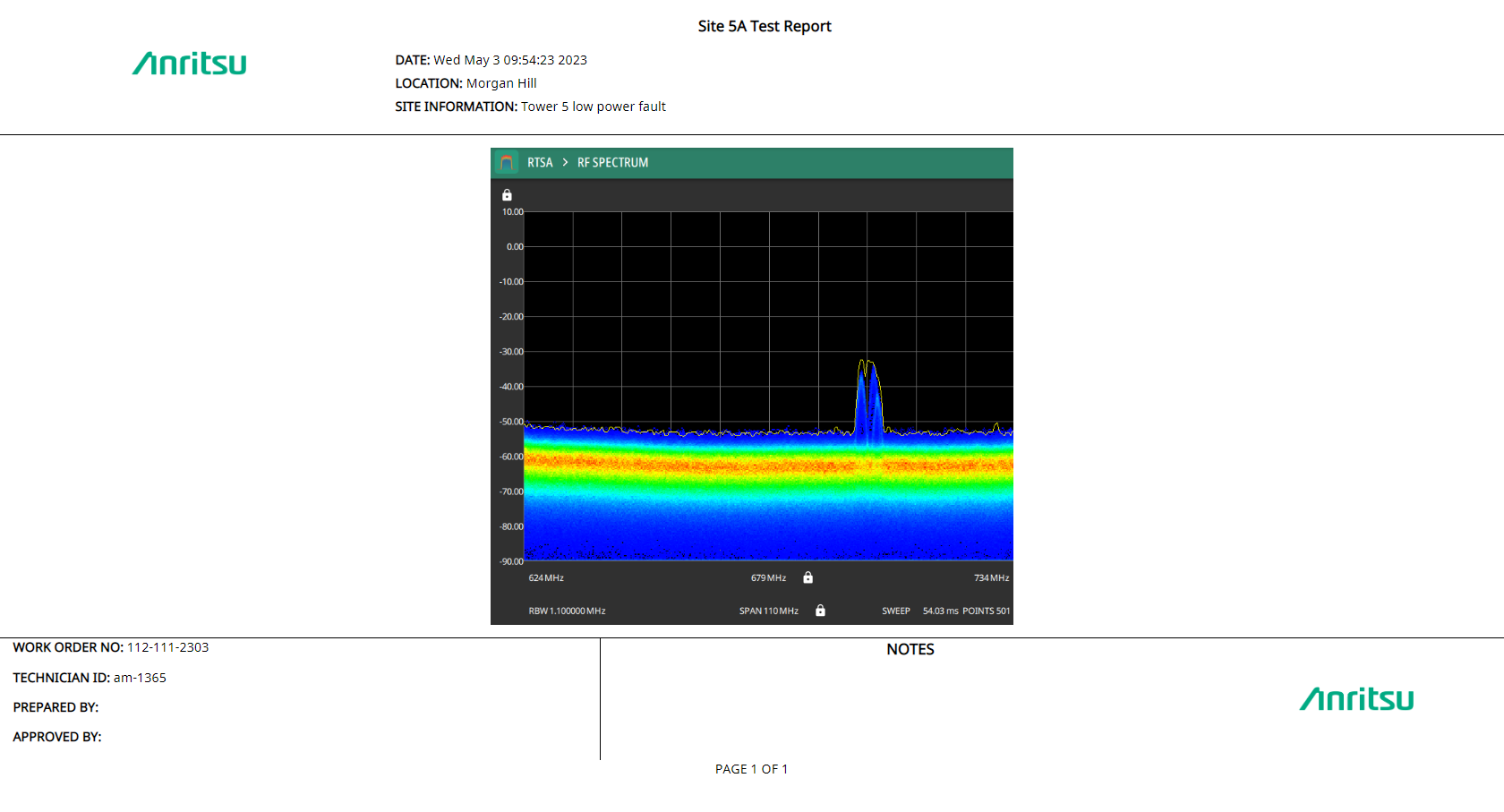
The PDF REPORTS tool allows the user to generate a PDF report or HTML report.
1. Select OPEN REPORT GENERATOR to open REPORT GENERATOR – CONFIG window.
PDF Reports Tool
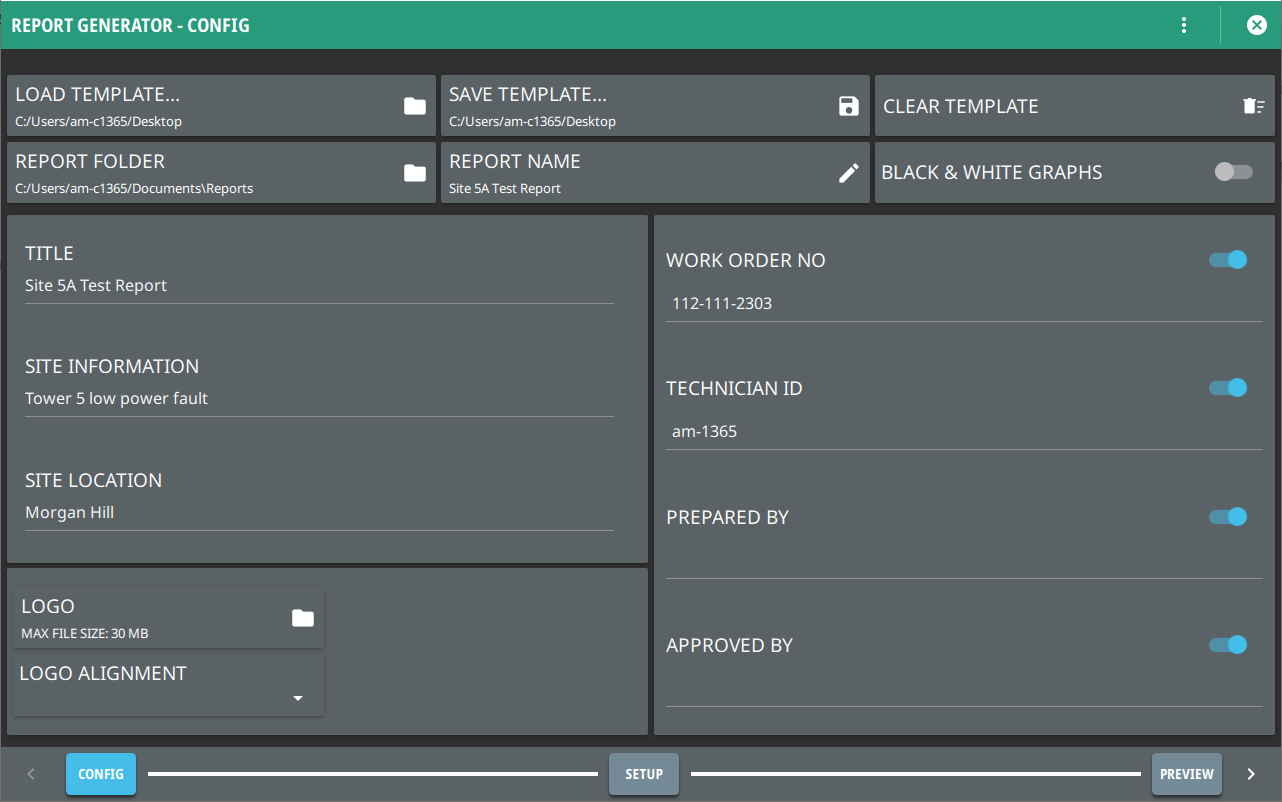
2. In REPORT GENERATOR – CONFIG window you can load a template to populate the given fields.
• Select LOAD TEMPLATE to use a customized template
• Select SAVE TEMPLATE to save the template.
• Select REPORT NAME to enter the name of the report.
• To have the traces in black and white, toggle on the BLACK & WHITE GRAPHS button.
• Toggle off the following buttons to exclude the information from the generated report:
• Work Order Number
• Technician ID
• Prepared By
• Approved By
• Select CLEAR TEMPLATE to delete the preloaded template.
Report Generator - Config Window
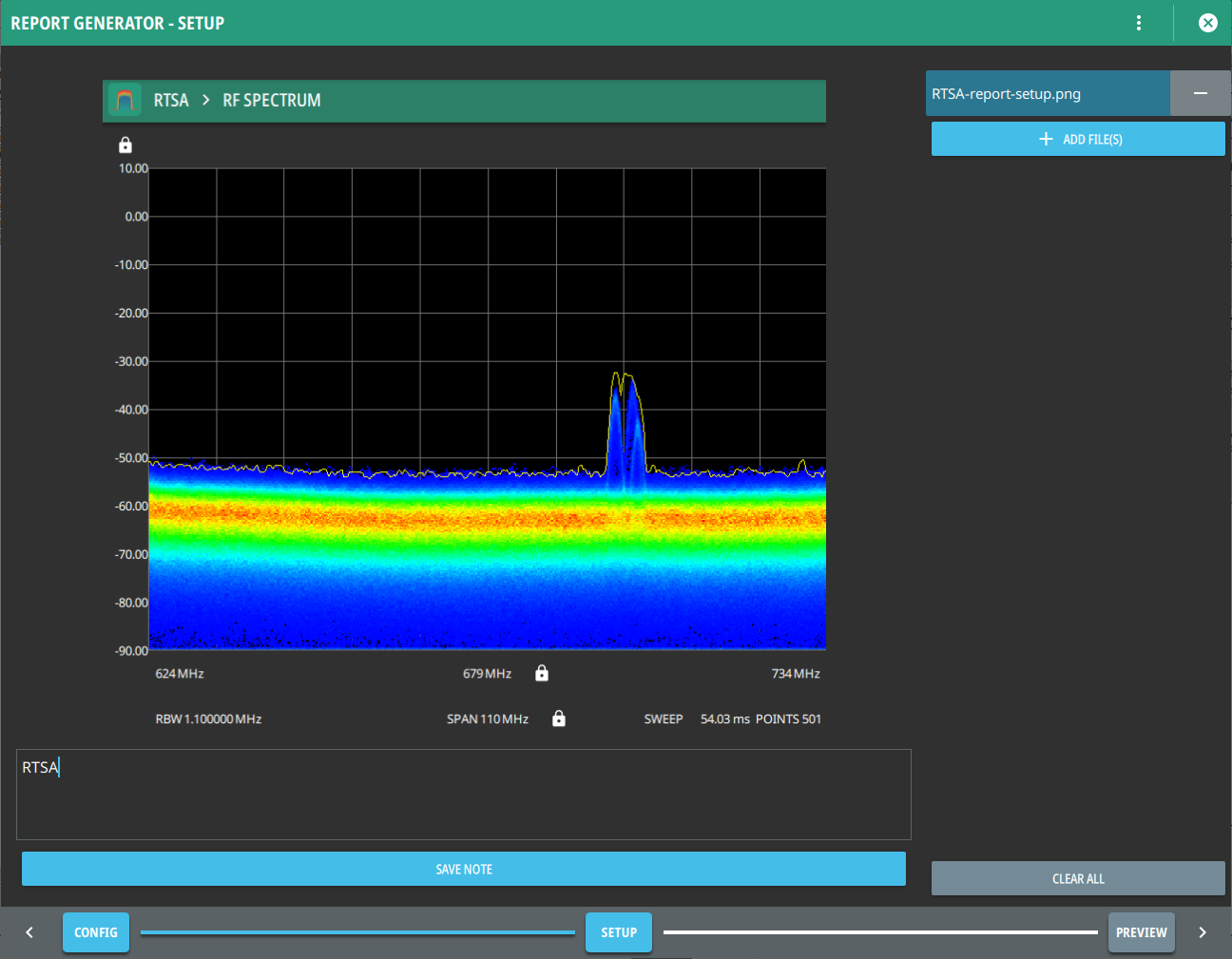
3. Select SETUP button in the bottom to add setup or trace files in REPORT GENERATOR - SETUP window.
• Select the blue + ADD FILE (S) button in the upper right to add image files (.png. jpeg, jpg) to the PDF report.
• To delete a file select the minus button next to the file name, alternately select CLEAR ALL.
• To include a specific note in your report, type the note into the text box located under the graph. Note that you need the select an image file before adding a note. Select SAVE NOTE button to save the note. Look for the green tick symbol in the lower right corner of the text box once the note is saved successfully.