Remote programming and operation of the instrument/module is accomplished via the Ethernet or USBTMC (MS27200A). The following sections provide information about the interface connections, cable requirements, and remote operation setup.
Network Interface Connection and Setup
The MS2720xA uses Ethernet or USBTMC (MS27200A) to communicate remotely with a controller. Most functions (except power on/off) can be controlled via a network connection to a PC connected directly (with an Ethernet cross‑over cable) or through a network. The Anritsu Remote Tool (MS27201A) supports the TCP/IP raw socket network protocol.
Note
The Anritsu Remote Tool is not supported by MS27200A module. System functions, supported measurements and other common features are controlled using SCPI commands only.
Ethernet networking uses a bus or star topology in which all of the interfacing devices are connected to a central cable called the bus, or are connected to a hub. Ethernet uses Carrier Sense Multiple Access/Collision Detection (CSMA/CD) access method to handle simultaneous transmissions over the bus. This standard enables network devices to detect simultaneous data channel usage, called a collision, and provides for a contention protocol. When a network device detects a collision, the CSMA/CD standard dictates that the data is retransmitted after waiting a random amount of time. If a second collision is detected, the data is again retransmitted after waiting twice as long. This is known as exponential back off.
The TCP/IP setup requires the following:
• IP Address: Every computer and electronic device in a TCP/IP network requires an IP address. An IPv4 address has four numbers (each between 0 and 255) separated by periods. For example: 128.111.122.42 is a valid IP address.
• Subnet Mask: The subnet mask distinguishes the portion of the IP address that is the network ID from the portion that is the station ID. The subnet mask 255.255.0.0, when applied to the IP address given above, would identify the network ID as 128.111 and the station ID as 122.42. All stations in the same local area network should have the same network ID, but different station IDs.
• Default Gateway: A TCP/IP network can have a gateway to communicate beyond the LAN identified by the network ID. A gateway is a computer or electronic device that is connected to two different networks and can move TCP/IP data from one network to the other. A single LAN that is not connected to another LAN requires a default gateway setting of 0.0.0.0. If you have a gateway, then the default gateway would be set to the appropriate value of your gateway.
• Ethernet Address: An Ethernet address, or Media Access Control (MAC) address, is a unique 48‑bit value that identifies a network interface card to the rest of the network. Every network card has a unique Ethernet address permanently stored into its memory.
• Remote programming and operation is accomplished via a TCP/IP raw socket connection to port 9001. The Anritsu Remote Tool (MS27201A) must establish a TCP/IP raw socket connection at port 9001 to the instrument.
• The MS2720xA is shipped with default static IP configuration. Refer to Static IP Configuration for detailed information.
• The Anritsu Remote Tool is used to connect the MS27201A to the network through IP ADDRESS or to itsHOSTNAME. If using DHCP instead of a static IP, using the HOSTNAME may be more reliable for finding an instrument on a network. Refer to Dynamic Configuration - Anritsu Remote Tool for detailed instructions.
• MS27200A does not support Anritsu Remote Tool, so refer to Ethernet Configuration for information on using SCPI commands to modify the network configuration.
• MS27200A supports USBTMC interface connection (USB TYPE-C). Refer to Sending SCPI Commands with NI-VISA to obtain detailed information.
• You may need to contact your network administrator to ensure network security policies, antivirus, and firewall settings do not block the access to the controlling computer and its ports.
The MS2720xA can be configured for Dynamic Host Configuration Protocol (DHCP), an Internet protocol that automates the process of setting IP addresses for devices that use TCP/IP, and is the most common method of configuring a device for network use.
To determine if a network is set up for DHCP, connect the instrument/module to the network and select DHCP protocol. Power cycle the instrument. If the network is set up for DHCP, the assigned IP address should be displayed in the network settings. For details regarding enabling DHCP configuration for MS27200A, refer to MS27200 Microwave Spectrum Monitor Module User Guide (PN:10580-00506).
Ethernet Connection
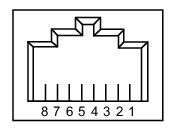
Interface between the instrument and other devices on the network is via a category five (CAT‑5) interface cable connected to a network. This cable uses four twisted pairs of insulated copper wires terminated into an RJ45 connector. CAT‑5 cabling is capable of supporting frequencies up to 100 MHz and data transfer speeds up to 1 Gbps, which accommodates 1000Base‑T, 100Base‑T, and 10Base‑T networks. CAT‑5 cables are based on the EIA/TIA 568 Commercial Building Telecommunications Wiring Standard developed by the Electronics Industries Association. A pinout diagram is shown in Table: 8‑pin Ethernet RJ45 Connector Pinout Diagram.
8‑pin Ethernet RJ45 Connector Pinout Diagram
Pin
Name
Description
Wire Color
1
TX+ or BI_DA+
Transmit or bidirectional data
White/Green
2
TX– or BI_DA-
Transmit or bidirectional data
Green
3
RX+ or BI_DB+
Receive or bidirectional data
White/Orange
4
BI_DC+
Not used (common mode termination) or bidirectional
Blue
5
BI_DC-
Not used (common mode termination) or bidirectional
White/Blue
6
RX– or BI_DB-
Receive or bidirectional data
Orange
7
BI_DD+
Not used (common mode termination) or bidirectional
White/Brown
8
BI_DD-
Not used (common mode termination) or bidirectional
Brown
Integrated into the RJ45 connector are two LEDs. The amber LED indicates the presence of LAN voltages (a live LAN connection) while the green LED flashes to show that LAN traffic is present. The instrument IP address and its HOSTNAME are set via the System menu (upper left corner) and accessing the ETHERNET settings menu.
TCP/IP connectivity requires setting up the parameters described at the beginning of this section. The following is a brief overview of how to set up a general LAN connection on the MS27201A.
Note
You may need to consult your network documentation or network administrator for assistance in configuring your network setup.
Ethernet Configuration
Most instrument functions (except power on/off) can be controlled via a network connection to a PC connected directly (with an Ethernet cross-over cable) or through a network. The product firmware supports the TCP/IP raw socket network protocol.
Static IP Configuration
The MS2720xA is shipped with the following default static IP configuration:
• DHCP: OFF (Static IP Address)
• Static IP Address: 10.0.0.2
• Subnet Mask: 255.255.255.0
• Default Gateway: 10.0.0.1
If the IP address is unknown or has been changed, follow the steps below to retrieve the IP address using a USB memory device:
1. Insert a USB memory device into one of the Type-A USB ports of the module and wait approximately ten seconds for the module to write an ip.txt file. This file contains the network configuration.
2. Plug in the USB memory device into your PC, select the USB drive, and open ip.txt file to retrieve the IP address.
Dynamic IP Configuration
After the PC is properly configured with static IP and a good connection has been established, SCPI commands are used to configure the Ethernet settings to different values.
Caution
Consult with your network administrator when configuring the network interface to avoid potential loss of access or discovery of the device.
The following steps describe how to verify and set the Ethernet configuration through SCPI programming:
1. Using any SCPI client, send the *IDN? query command to your instrument IP address (10.0.0.2 default) on port 9001. Verify the response includes the model and serial numbers, and other information.
Note
If a response is not returned, try switching to a cross-over Ethernet cable and send the query command again. Ensure that your SCPI client has the termination character enabled: \n Line Feed (xA).
2. To configure the instrument for DHCP, send the following SCPI commands to your instrument IP address on port 9001:
SYSTem:COMMunicate:LAN:DHCP?
Queries the DHCP setting. The return value should be OFF if the instrument is currently configured for static IP.
SYSTem:COMMunicate:LAN:DHCP ON
Turns the DHCP setting ON. The setting is applied immediately upon sending the command.
3. Turning DHCP ON will change the IP address and the module must then be connected to a DHCP network to obtain a new IP address.
4. Obtain the new IP by one of the following:
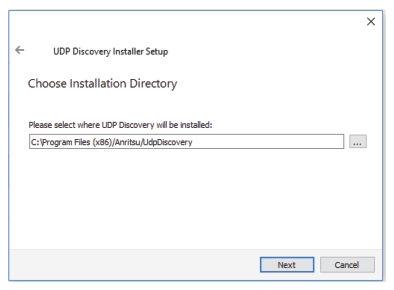
Use the Anritsu Discovery program to retrieve the new IP address (see UDP Discovery Toolfor instructions on using the discovery program).
Insert a USB memory device into one of the USB Type-A ports to retrieve the ip.txt file containing the IP address information.
5. Send the *IDN? SCPI command to verify a connection has been established.
UDP Discovery Tool
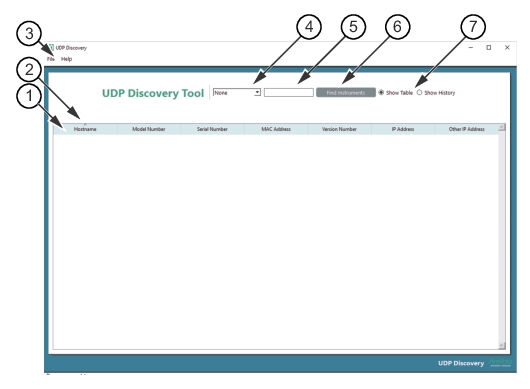
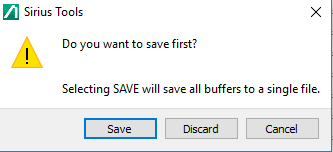
The UDP Discovery Tool is a Windows application that will display a sortable list of available MS2720xA devices on the network. This tool provides the ability to find and filter devices by Hostname, Model number, Serial number, MAC address, Version number, or by IP Address. If needed, the tool also provides the ability to save the results of your search and to view a brief history of your searches for comparison.
There could be many instruments already connected to the network. Use the selection filter to narrow the search results.
Select a filter method
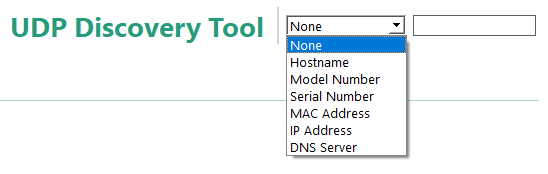
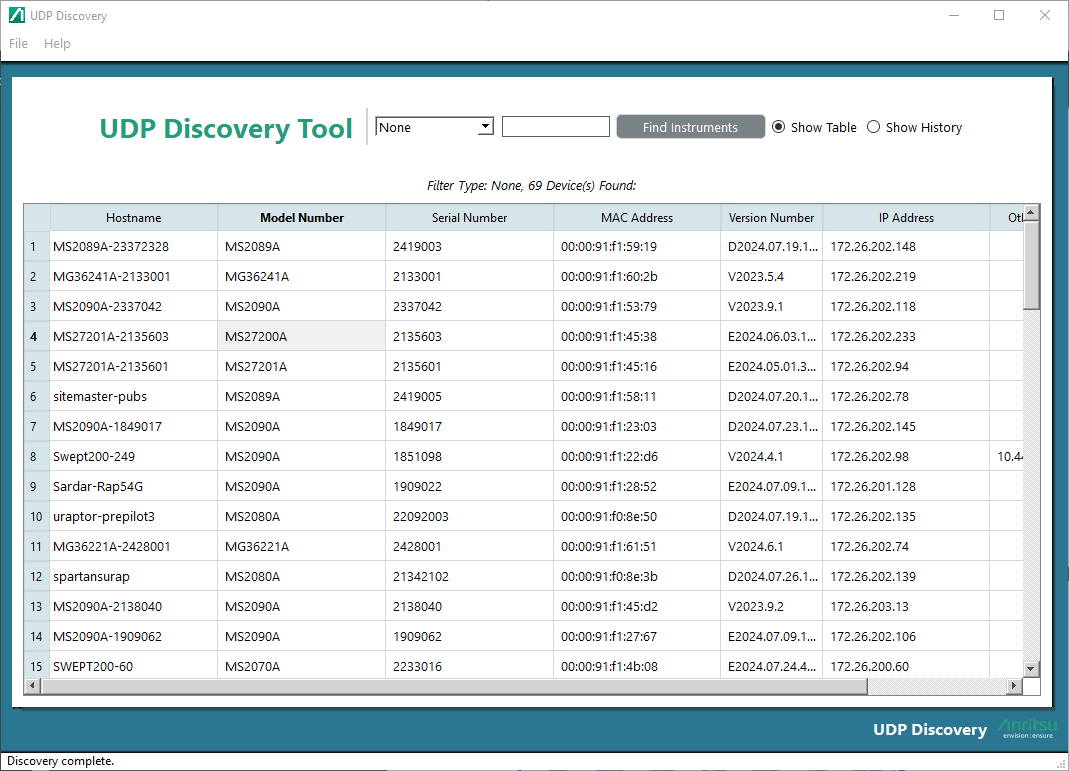
1. Click the connection arrow to display the filter list box are shown in Figure: Filter List Box.
Filter List Box
2. Click a filter method from the list. The selections available are None, Hostname, Model Number, Serial Number, Mac Address, IP Address, IP Address, and DNS Server.
If a Hostname, Model Number, Serial Number, Mac Address, IP Address, IP Address, or DNS Server is not known, select None.
• None: All instruments attached to the local area network will be listed.
• Hostname: Host name of the probe
• Model Number: Model Number of the probe
• Serial Number: Serial Number of the probe
• MAC Address: Medium Access Control (MAC) address
• IP Address: Internet Protocol (IP) address
• DNS Server: Domain Name System (DNS) server
3. Click None to display an alphabetical listing of the inventoried instruments available to connect as shown in Figure: Displayed Instrument Inventory.
Displayed Instrument Inventory
Sorting the Listing
Selecting a column header displays a filter caret above column header as shown in Figure: UDP Discovery Tool User Interface. When the caret is clicked, the listing is sorted by the column in the direction the caret is pointing. Clicking the caret again reverses the caret direction and sorts the listing in reverse order.
3. Paste the serial number in the box to the right of the filter list.
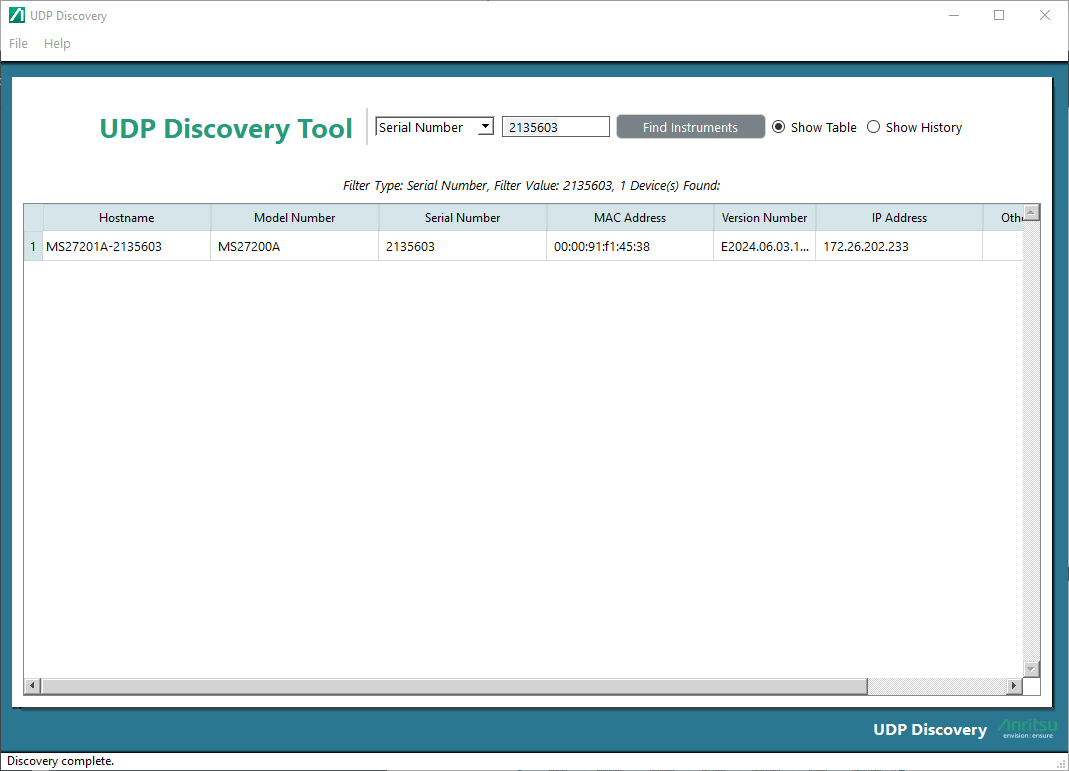
4. Click the Find Instruments bar. If the instrument is located, the instrument details will be displayed as shown in Figure: Locate Instrument.
A status readout is displayed above the column headings. In this example, the readout is:
Filter Type: Serial Number, Filter Value: 1713003, 1 Device(s) Found:
If the device could not be found, the last section would read: No Device Found.
Locate Instrument
Connecting another device will erase the Show Table log and display the new device details. The previous erased device details will be available in the Show History log until the history details are erased. SeeClearing the History.
User Interface Display Types
The selectable radio buttons provide the Show Table and Show History user interface connection display.
Show Table
Click this radio button to display the device connection details as shown in Figure: Locate Instrument.
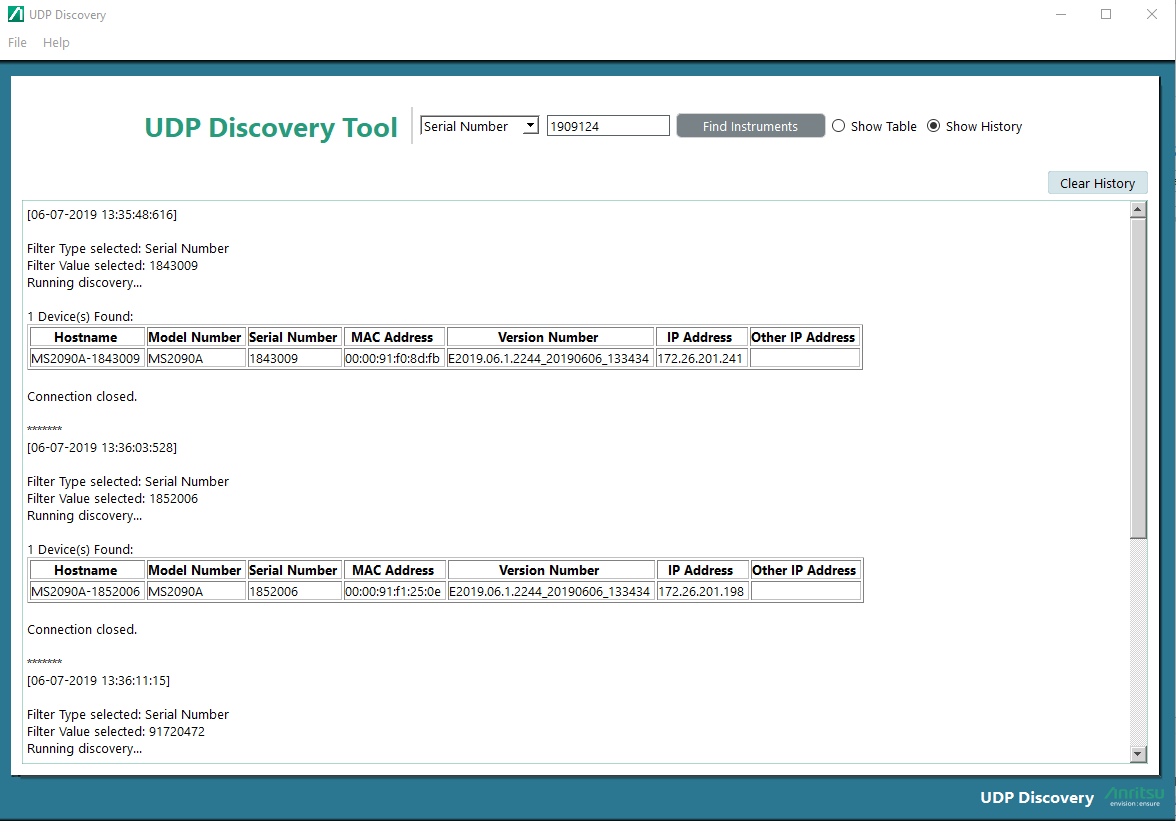
Show History
Click this radio button to display current and previous connection-activity details as shown in Figure: Show History.
Show History
Clearing the History
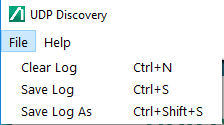
Clear the Show History log by clicking the Clear History button or by clicking Clear Log from the Toolbar File menu.
a. Click Clear Log to remove the History contents without saving. The data will not be retrievable.
b. Click Save Log to save to a users selected location. The location will be the same location selected from the Save Log As submenu.
c. Click Save Log As to save to a users selected location.
Dynamic Configuration - Anritsu Remote Tool
Follow the instructions below to configure Ethernet settings (DHCP) on Anritsu Remote Tool for MS27201A:
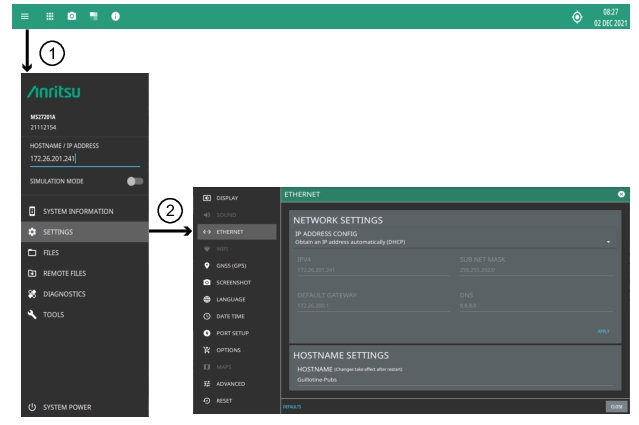
1. Click System menu (three-line icon in upper left corner).
2. Click Settings to access the instrument settings menu, then select Ethernet to view the current network settings (IP address, HOSTNAME, etc.).
Ethernet Settings
The instrument IP address can be set automatically using DHCP or manually by entering the desired IP address, gateway address, and subnet mask. DHCP is an Internet protocol that automates the process of setting IP addresses for devices that use TCP/IP, and is the most common method of configuring a device for network use.
Note
An active Ethernet cable must be connected to the instrument/module while it is turned on, a reboot may be required to establish a DHCP connection. If the port becomes inactive, verify that an active Ethernet cable is attached to the instrument, then cycle the instrument power off and on.