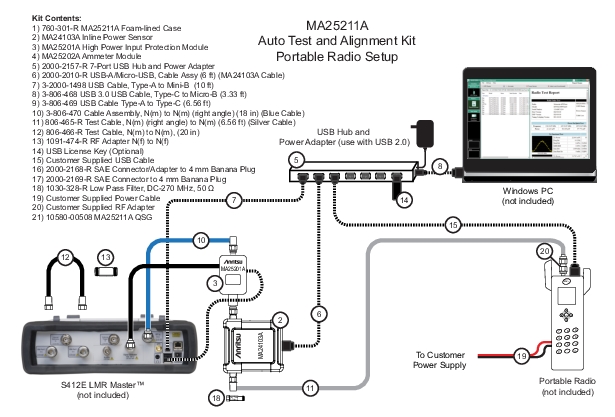
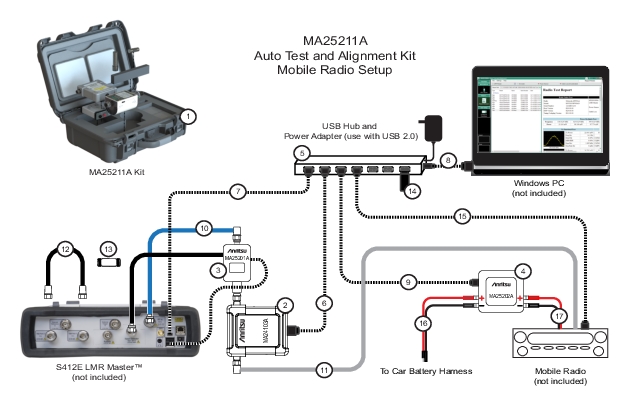
This quick start guide provides an overview of the sequential steps on how to conduct Auto Testing and Alignment of Motorola’s portable and mobile radios using the Anritsu S412E LMR Master, MA25211A Auto Test and Alignment kit and MX281000A Auto Test and Alignment software. For complete documentation of the features and test processes refer to the MX281000A User Guide PN: 10580-00498.
Follow the procedure below to start radio testing and/or alignment:
1. Install the MX281000A Auto Test and Alignment software on a Windows PC/laptop. Enable the license key using either PC license file format or USB dongle license key.
3. Ensure the power setting on the user-supplied power supply is 7.5 volts for testing the portable radios and is 13.6 volts for testing mobile radios.
Note
Using a battery eliminator is recommended with portable radios, especially when performing the alignment process.
4. Open the MX281000A software. Click the APX Series button on the left to display the Motorola Radio Test and Alignment screen.
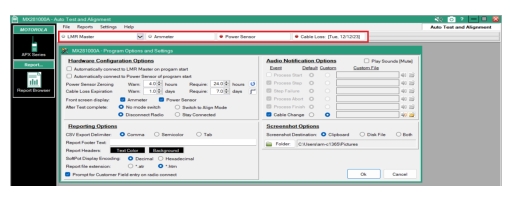
5. Click LMR Master button on the Test Equipment Status toolbar to manually connect to the S412E. To connect automatically, click Settings > Application Settings and check Automatically connect to LMR Master on program start box. See Figure: Test Equipment Toolbar and MX281000A Program and Options Dialog.
Test Equipment Toolbar and MX281000A Program and Options Dialog
6. Click the Power Sensor button on the Test Equipment status toolbar to manually connect to the MA24103A Inline Power Sensor. To connect automatically, click Settings > Application Settings and check Automatically connect to Power Sensor on program start box. See Figure: Test Equipment Toolbar and MX281000A Program and Options Dialog.
Notice that the application will automatically start zeroing the power sensor in order to reduce zero offset and noise impact caused by temperature changes and sensor drift, etc.
7. Ensure the ammeter is connected and the Ammeter button is green when testing mobile radios. The ammeter is not required for testing portable radios and this step can be skipped.
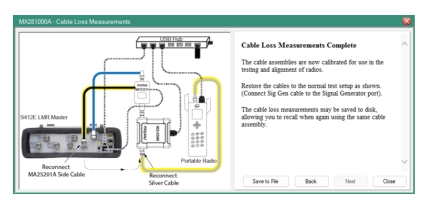
Note that the cable loss measurements are time-stamped. Refer to the user guide for detailed information by accessing Help > View Help (MX281000A User’s Guide).
MX281000A - Cable Loss Measurements Dialog
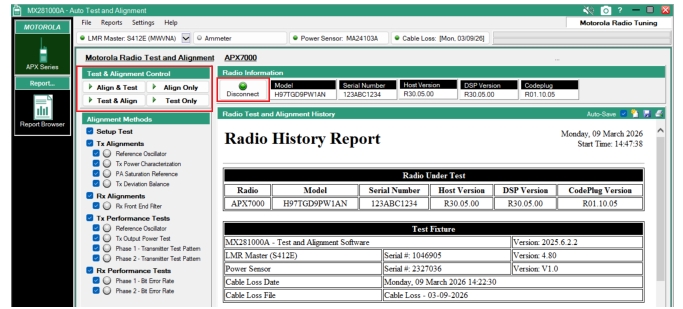
9. Check if the LMR Master, Ammeter (applicable for mobile radios), Power Sensor and Cable Loss buttons have turned green. Then click the Connect button under Radio Information section.
Disconnect Button and Test & Alignment Control Section
11. Select the desired option under Test & Alignment Control section. You can choose Align Only if only alignment needs to be performed, or choose Align & Test if both alignment and test are required. See Figure: Disconnect Button and Test & Alignment Control Section. Refer to the user guide for detailed information.
Note that the list of alignment methods may not be the same for all radios.
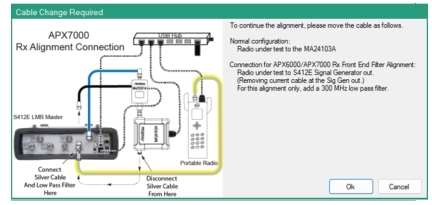
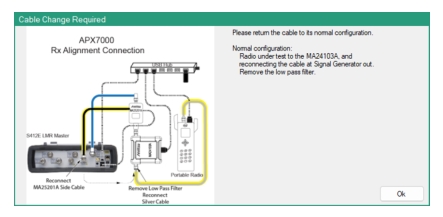
13. Some radios operating in the UHF band may require a setup change for the Rx Front End Filter (FEF) alignment. The MX281000A software will display Cable Changed Required dialog prompting you to change the setup by connecting the radio directly to the S412E as shown in Figure: Cable Change Required Dialog - Connect Low Pass Filter. Refer to the user guide for detailed information.
14. Connect a 1030-328-R Low Pass Filter to prevent unwanted signals from causing a misalignment during Rx FEF alignment for testing only APX7000 radios.
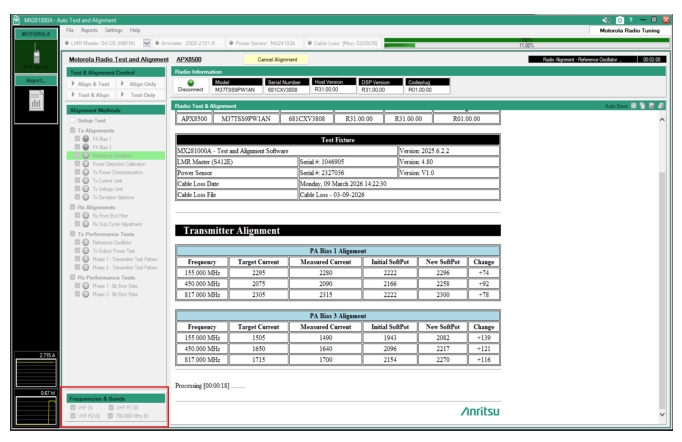
16. The Frequencies & Bands section at the bottom left displays the radio under test’s supported frequencies and bands, keep in mind that they will vary based on the radio’s options. See Figure: MX281000 Auto Test and Alignment Screen.
17. You can determine the progress of the test/alignment from the two bars at the top-right corner of the display screen. The top bar indicates the progress of the current alignment method. The bottom bar indicates the overall progress of the test and alignment. See Figure: MX281000 Auto Test and Alignment Screen.
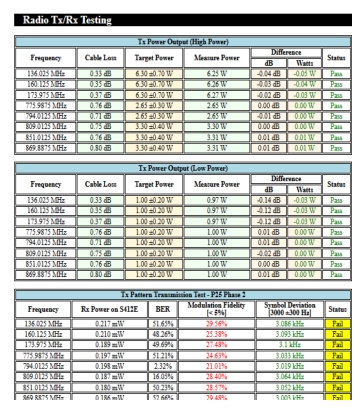
18. Notice that while the test/alignment is still in process, the Radio Align & Test Report is generated. Typically the report includes details such as Radio Under Test, Test Fixture, Setup Check, Tx/Rx Alignment, etc. See Figure: MX281000 Auto Test and Alignment Screen.
MX281000 Auto Test and Alignment Screen
19. Use the Radio Align & Test Report to verify the target power vs. measured power, the BER percentage, and the pass/fail status of the specific frequency in that band. The Pass status is indicated in green and Fail status will be highlighted in yellow. See Figure: Radio Align & Test Report.
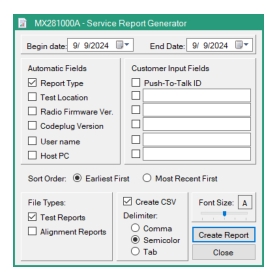
In the Service Report Generator dialog, you can add the user-defined fields, specify the sort order, font and start/end dates, etc. Refer to the user guide for detailed information.
MX281000A Service Report Generator Dialog
21. To save or print the current report, go to the Reports menu and choose a corresponding option.
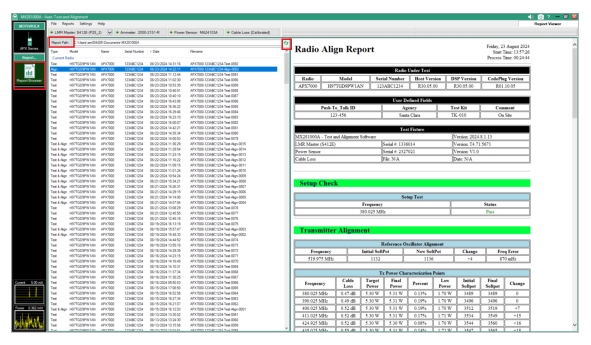
22. Click the Report Browser button to view reports saved on the computer. If necessary, click Report Path in the upper-left corner of the screen to change the location where the reports are saved. Remember to click the green Refresh icon to refresh the list and display the most current reports on the top, as shown in Figure: Report Browser Screen.