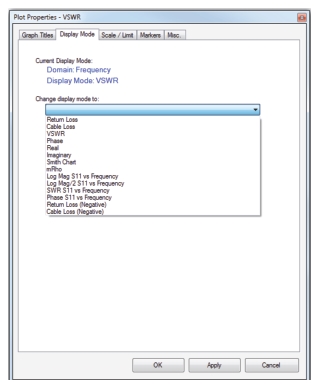
The Current Display Mode – Displays the Domain and Display Mode information of the current measurement plot. To change the display of the measurement plot, click Plot Properties in the Edit menu to open the Plot Properties dialog. Click the Display Mode tab.
Plot Properties Detail
1. Click the arrow button of the list window.
2. Click the desired display mode as shown in the picture above.
3. Press the Apply button.
4. Press OK when done.
Scale/Limit
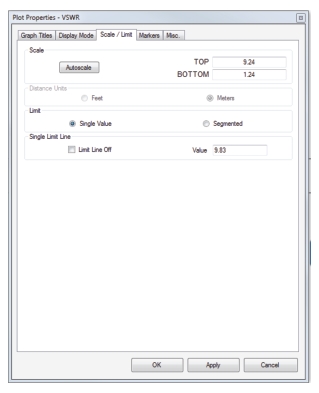
Use to change axis values and limit line settings.
Single Limit Line Dialog
Limit Line Settings
The following settings are for single and segmented limit lines. Selecting either Single Value or Segmented in the Limit box will display different setting boxes.
When changing the y-axis value using Autoscale or manually, the new value will become the new default value for that trace.
1. Press the Autoscale button for setting the y-axis Top and Bottom values using the LST software algorithm.
2. Press the OK button.
3. Manually enter the desired Top and Bottom values for the y-axis.
4. Press the Apply button then the OK button.
Distance Units
When changing the x-axis value units, the last units selected will be the default value for that trace.
Click the desired unit for the measurement plot to display in either Feet or Meters.
Limit Line Off
Check the Single Value box to turn off the limit line in the Plot Information file. Limit Line on is the default value.
Segmented Limit Line Settings
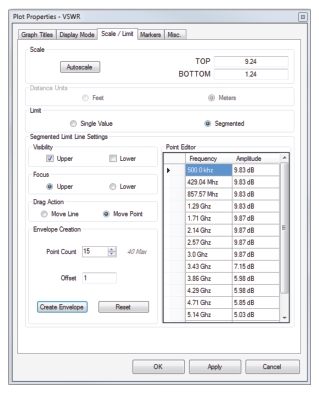
The Segmented Scale/Limit dialog box provides the user interface described below.
Plot Properties Scale / Limit Segmented Dialog
Visibility
Checking a box will display the Upper and/or Lower Limit Lines.
Focus
Only one line can be edited at one time. Click either Upper or Lower.
Drag Action
Selecting Move Line will allow you to move the whole limit line to the desired location. Selecting Move Point allows you to move a single point on the limit line to the desired location.
Envelope Creation
• Point Count: Enter the number of points to create a segmented line. The default value is 2.
• Offset: If focus is set to Upper, this value is the distance between the highest point of the measurement trace and the limit line. If focus is set to Lower, this value is the distance between the lowest point on the measurement trace and the limit line. The default value is 0.
• Create Envelope: Creates an envelope of segmented lines, determined by the number of points set in Point Count, around the measurement trace.
• Reset: Check the Limit Line Off box to turn off the limit line in the Plot Information file. Limit Line on is the default value.
Point Editor
Point Editor is a table of frequency and amplitude for each point in the segmented line.
1. To edit a specific parameter, click on the frequency or amplitude box. Repeat until all desired values are changed.