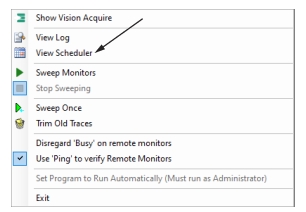
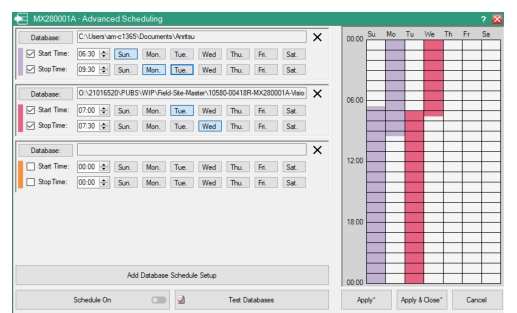
The Scheduler provides a weekly scheduling format to run up to four databases with different sweep parameters and Spectrum Analyzers to analyze the signal span at different times in the day or week. The scheduler menu can be opened by right-clicking the Vision Acquire icon in the system tray and locate View Scheduler as shown in Figure: View Scheduler, or pressing the Scheduler button in the Trace Acquire. The start time and stop time is set by the user for each database as shown in Figure: Advanced Scheduling Window.
View Scheduler
Advanced Scheduling Window
Advanced Scheduling Procedure
1. Click the Database to select a database file.
2. Set the time for data collection to begin using Start/Stop Time. You can choose the start and stop days which will displayed as color coded boxes as shown in Figure: Advanced Scheduling Window.
3. Select a start and stop day of the week during which the data collection should take place. Notice the code-coded calendar on the right that showing the set start/stop time and day of the week. Note that an asterisk symbol is displayed both on Apply and Apply & Close buttons as shown in Figure: Advanced Scheduling Window, to indicate that the changes are not applied yet. Once the Apply button is clicked the asterisk symbol disappears indicating the changes have been applied. Click Cancel to cancel the selections otherwise click either Apply or Apply and Close.
4. Click Add Database Schedule Setup button to add more databases. Click the X icon located at the right side of the database path to delete a specific database.
5. Clicking Schedule On button turns the Scheduler button green in Vision Acquire window. This indication keep the user informed of the setup database scheduling.
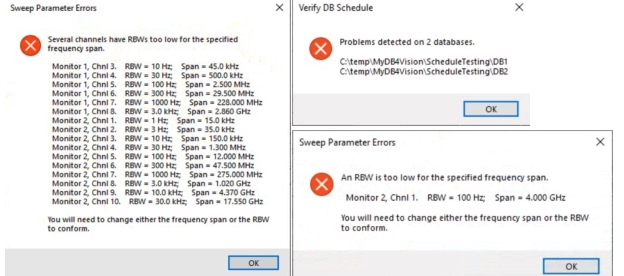
6. Click Test Databases button. This provides a sweep parameters pre-check to verify the RBW, frequency range, and RSM communication is valid so the scheduled database sweeps will perform properly. If an invalid setup is detected, an error message will display as shown Figure: Scheduler Error Message Examples. Corrections must be made as indicated to continue with the scheduled sweep.