Icon | Description |
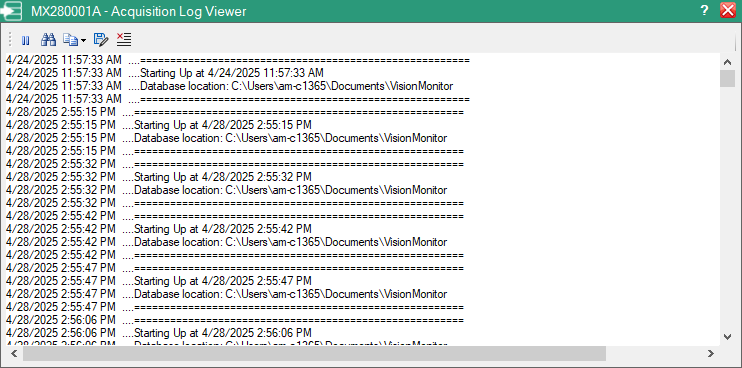
 | Sweep Monitors Start the collection of traces to the database. Data collection can be stopped from "Trace Acquire System Tray Menu". Go to system tray and right-click on the Trace Acquire icon, Trace Acquire menu pops up providing an option to stop data collection. A report titled Vision Monitor Failure and Status Report is generated and placed in the default browser. Note that the sweep count has been updated to reset based on the set Failure E-mail Rate. For example if the Failure E-mail Rate is set to 1 hour then sweep count will reset after every hour. See MX280001A - Acquisition Log Viewer below as an example. |
 | Sweep Monitor Time Setting Click this drop-down to set the data collection period from 1 hour to minutes, or seconds. Scroll down the list for the desired time or click the up/down arrow to the desired time. Click one of the timing options from the list. Alternative time intervals are not allowed. Note that based on the selected time interval, the Archive every drop-down options change. For example, if you select 1 second the only available option for Archive every drop-down is 3 Hours. If you select 1 minute more number of options appear in the Archive every drop-down. |
 | Email Notifications Window To become active, the email configuration must be configured before it will become active. For details on setting up email notifications, refer to Setting Up Email Notifications. Click on the + sign to add email address and check boxes to set notification period. |
 | Open File Folder Browse and open a file. |
 | Scheduler View the Advanced Database Scheduling window. See View Scheduler. |
 | Help |
 | View Log Opens the Acquisition Log Viewer user interface screen that contains the activity between the Trace Acquire software and the remote Spectrum Analyzers. If opened when a sweep is occurring, real-time data can be viewed as shown below. |
 | Archive Save the current database to a different directory location. Click to open the Browse For Folder dialog. Click a folder or Make a New Folder to place the archive database. Click OK. This makes a copy of the active database, but new traces are still added to the old database. |
 | Compress Compresses the data in the database file. It removes the unused space created by the deletion of old traces from the database. If Vision software seems to be running unusually slow, compacting the database may be necessary. |
 | Trim Removes old traces from the database immediately. Does the same thing as the Automatically remove old traces check box, except without waiting. The “trimmed” database is also compressed. |
 | Database Path Displays the directory location of the current database. Click the folder to enter a different database. This will not create a new database, but will point Trace Acquire to a different existing database for future data storage. |
 | Sweep Once Sweep all Spectrum Analyzers immediately and store all traces. |
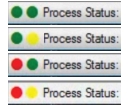 | Monitor Process Status Indicator The Monitor Process Status Indicator bar provides a visual indicator of the Trace Acquire UI to indicate if a Spectrum Analyzer is off-line or in use. The Process Status indicator descriptions are as follows: • Green, Green: All remote Spectrum Analyzers are on-line and available. • Green, Yellow: All Spectrum Analyzers are on-line, but one or more is occupied by another user. • Red, Green: One or more remote Spectrum Analyzers are currently off-line, but all the Spectrum Analyzers that are on-line are available. • Red, Yellow: At least one Spectrum Analyzer is off-line, and of the Spectrum Analyzers that are on-line, at least one of the remote Spectrum Analyzers is occupied by another user. |