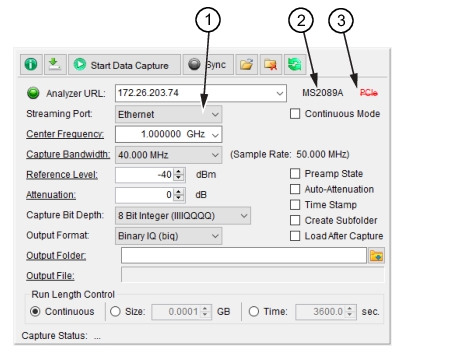
The MX280005A Capture menu shown in Figure: MX280005A Capture Menu is used to connect the analyzer to the PCIe interface.
1. Use the MX280005A Capture menu Streaming Port pull-down list and click PCIe. If the PCIe selection is not available (only Ethernet), refer toEthernet and PCIe Connections to install and activate the PCIe card connection.
2. Verify the connected analyzer model shows to the right of the IP address.
3. Verify PCIe is displayed. If a strike-through (PCIe) is displayed, then the PCIe card is not connected.
2. Displays the spectrum analyzer model type connected.
3. Displays PCIe is not connected to the spectrum analyzer. PCIe with a strike-through (PCIe) is displayed if not connected.
4. Streaming Port list. Connect as PCIe.
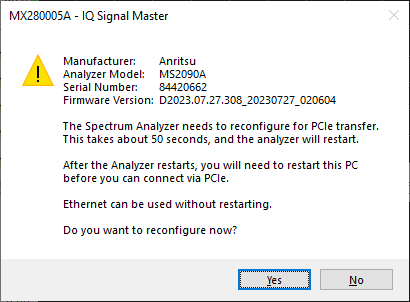
5. Analyzer URL button. Press to display the PCIe connection status dialog as shown in Figure: PCIe Context Menu.
Spectrum Analyzer Information
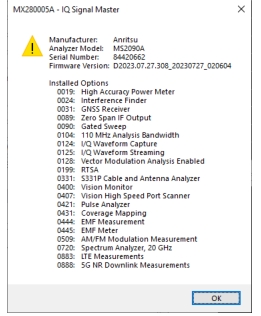
The MX280005A spectrum analyzer context menu displays the information of the connected spectrum analyzer as shown in Figure: Connected Spectrum Analyzer Information. Displayed are the manufacturer, model type, serial number of the analyzer, firmware, and installed options.
Connected Spectrum Analyzer Information
PCIe Connection Status
Press the Analyzer URL button to display the context menu shown in Figure: PCIe Context Menu. Follow the instruction shown to connect to the PCIe to provide the PC transfer. This completes the installation of the PCIe card for the MX280005A IQ Signal Master Software.