 |
|
- 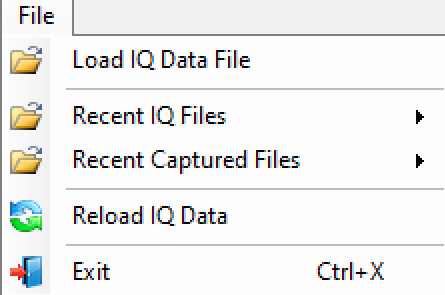 | Load IQ Data File Browse to find and load an IQ file Recent IQ Files Open to display the recent IQ files that have been viewed. Basic information is stored and subsequently when the same file is opened again it is very fast. Along with the basic file description, user settings such as markers are also stored in the same place. Recent Captured Files Open to display the recently captured IQ files. This command minimizes the need to browse the file folders to search for the recently captured and saved IQ files. Reload IQ Data Reload the most recent viewed file. Exit: Exits the program. |
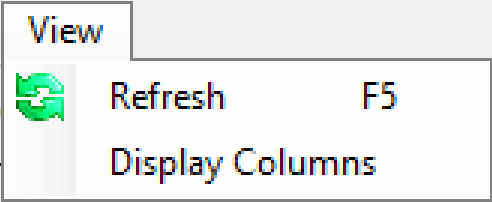 | Refresh Refresh the Browse menu files. If new data files have been added or removed from a folder, press Refresh to update the Browse screen file list. Display Columns Provides the menu shown below. Check the columns to be shown in the Browse window. Press Close if no changes or press Apply to make changes effective. 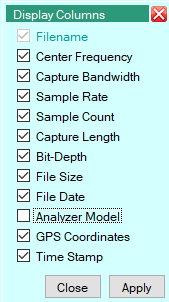 |