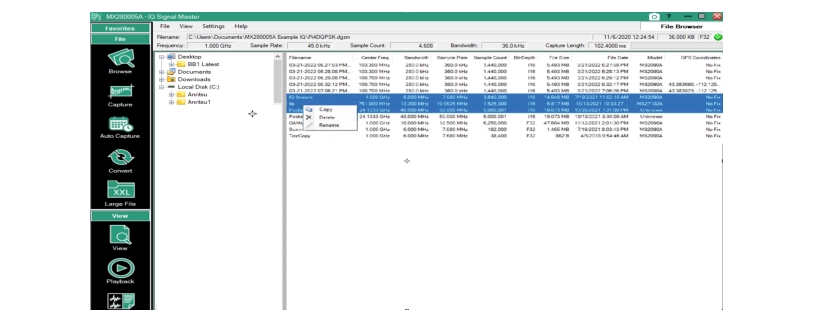
The Browse window metadata menu bar provides an easy way to browse the IQ data files. The column headings are shown in Figure: Metadata Columns.
Metadata Columns
1. Filename: Displays the name of the file
2. Center Freq: Signal center frequency
3. Bandwidth: Signal bandwidth
4. Sample Rate: Signal sample rate per second
5. Sample Count: Signal sample count per second
6. Length: IQ data file length
7. Bit Depth: The amount of information stored. I: signifies Integer F: signifies Float
8. File Size: Size of the file
9. File Date: Date file was saved
10. Model: Model of the signal analyzer
11. GPS Coordinates: Monitored signal GPS coordinates
12. Time: A displays Yes or No. Indicates if time stamp is available
13. Sort: Use the Sort arrows shown to sort the rows up or down by any column.
Load File
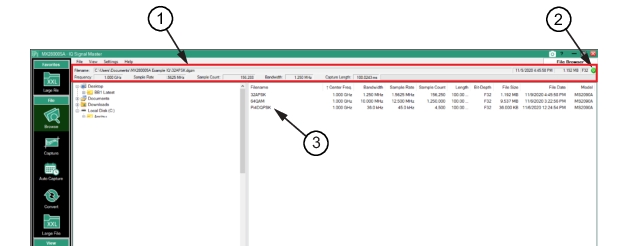
Double-click a file in the file list to load it as the active file for viewing and data analysis. The file parameters for the active file are displayed in the top section and will remain in view as shown in Figure: Active File Parameters. The displayed file parameters are the same shown in the listed file. These parameters will remain in view at this location and become read-only (grayed) while analyzing the signal with other MX280005A program modes/menus.
Active File Parameters
1. Signal Parameters: The selected file opened from the browser displays the active signal parameters.
2. Green Indicates Signed: This file was captured from a spectrum analyzer with Option 128. See Signed/Unsigned Indicator.
3. User Selected File: Double-click to load a file for analysis.
File Types
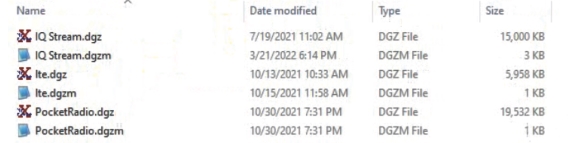
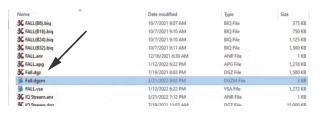
Each file listed in the Browse file window consists of two files.
• .dgz: raw IQ binary data
• .dgzm: metadata file
Paste files into a user selected folder as shown in Figure: Copy and Paste Browse Files. Although three files were copied, six will be pasted because as each file is paired as a .dgz and a .dgzm file. Deleting will perform the same transition and delete both the .dgz and .dgzm files.