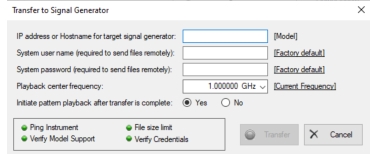
IP Address or Hostname for target signal generator: Enter the IP address of the MG3700A/E. Model is displayed when connection is successful. System User name (required to send files remotely) Enter system user name. Click Factory default to copy user name to the user name field. System password (required to send files remotely) Enter system password. Click Factory default to copy the default password to the password field. Playback Center Frequency The playback center frequency is the same as the Center Frequency in the file description column of the Import File Type window. Click to copy the current signal generator center frequency to the center frequency field. Initiate pattern playback after transfer is complete Check this box to display the signal after the transfer is complete. Left unchecked will store the file. In this case, the file will be stored as 64QAM-C in the Convert folder. Ping Instrument Mousing over this indicator turns the background color light blue, indicating that these are active elements. Clicking will test the remote connection and that it can ping the IP address. Indicator turns green if ping is successful. Indicator turns red if not successful. Verify Model Support Mousing over this indicator turns the background color light blue, indicating that these are active elements. Clicking will verify that the model type returned is a supported type. Indicator turns green if supported. Indicator turns red if not supported. Queries the signal generator for free space and file size limitations. Anritsu Signal Generators: Option control indicates the maximum IQ file size supported. Indicator - Turns green if the IQ file size is supported or available; turns red if the IQ file size is not supported or available. Verify Credentials Mousing over this indicator turns the background color light blue, indicating that these are active elements. Clicking will cause the revalidation of the unit at the specified address. Anritsu signal generators run a version of Microsoft Windows. The user name and password are required Windows credentials to log into the unit. Anritsu Signal Generators: Indicator turns green if credentials are available, turns red if the credential are not available. Transfer Mousing over this indicator turns the background color light blue, indicating that these are active elements. Clicking will cause the revalidation of the unit at the specified address. The Transfer button is grayed if conditions not met. Indicator turns green when conditions are met. Press to export data to the signal generator. | .png)