IQ Signal Masterâ„¢ MX280005A Vector Signal Analysis Software : File Mode : Convert Menu
 
Convert Menu
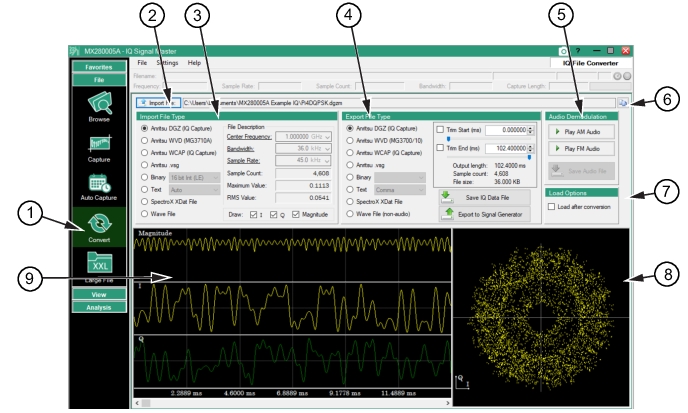
The Convert menu provides file conversion tools for pulling in the IQ parameters of an existing incompatible file format and converts it to a compatible file format. The Convert menu is shown in Figure: Convert Menu.
Note 
The convert menu is disabled if File Conversion option is not enabled.
The File Information area just below the main menu bar is grayed out in this mode. Other screens operate on the loaded DGZ file; however, Convert is for converting files between formats and the input file may not typically be a DGZ file. The Convert window is not exporting the file listed in the File Summary part of the screen - hence it is grayed out. There is a separate Import File button, so you can load a file in a format otherwise not supported in this application, and convert to a different format.
Only files in Anritsu specific formats (first four import options) can be exported to Anritsu specific formats.
Convert Menu 
1. Convert Menu: Opens the Convert Menu.
2. Import File Button: Load a file in a format not supported in this application, and convert to a different format.
3. Import File Type Menu: See Table: Import File Type.
4. Export File Type Menu: See Table: Export File Type.
5. Audio Demodulation Menu: See Table: Audio Demodulation.
6. Playback File Button: Copy Playback file to Convert filename field
7. IQ Constellation Diagram: The constellation diagram shows all the possible symbols that can be transmitted by the system as a collection of points in the Time (Vertical Axis), Frequency (Horizontal Axis), and Amplitude (Color) Domains.
8. CCDF Plot: (Complementary Cumulative Distribution Function) The x-axis represents the power level above the average power and the y-axis represents the percentage of time the signal power is at or above the power represented at the x-axis.
9. Magnitude and IQ Graphs: Displays the Magnitude, I (reference signal), and Q (quadrature shift signal) graphs for the data file.