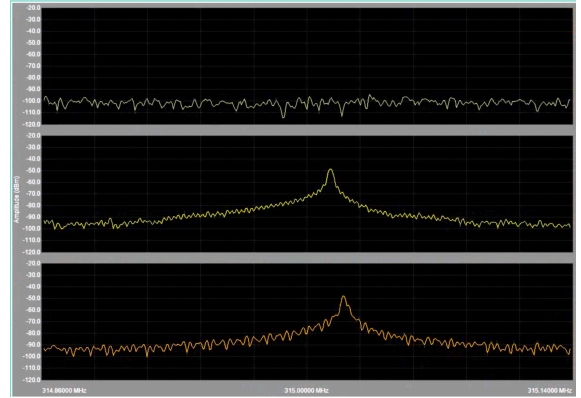
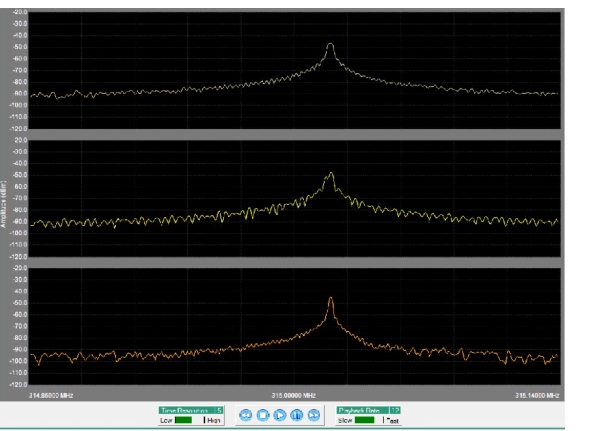
Initially, the time offsets for the signals are not synchronized as shown in Figure: Unsynchronized Signals. The top signal is out of view. The second and third signals are not aligned.
Unsynchronized Signals
Locate Signal Peak
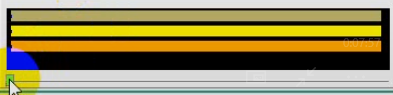
To locate a signal peak so that it can be synchronized with the other signals, move the Time Offset slider to the far left so that each progress bar is minimized to the beginning of the time offset graph as shown in Figure: Minimize Offset Slider.
Minimize Offset Slider
Approximate the Signal Synchronization
The signals synchronization is first performed as a rough estimate of the time offset between the signals.
1. Move a signals sweeps using the time offset graph.
2. One at a time, locate each signal peak by moving the time offset slider slowly to the right until a peak appears in one of the data signal displays.
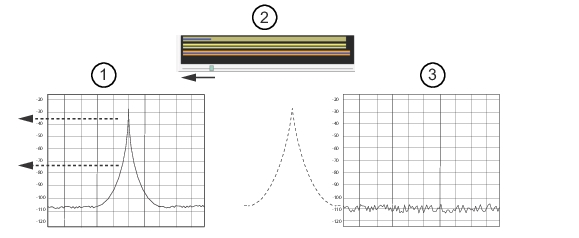
3. After a peak is found, move the slider slowly to he left until the peak just disappears at the left side of the screen as shown in Figure: Synchronizing the Signals. D this for each signal. This is a roughly adjusted time offset.
Synchronizing the Signals
1. Adjust signal to the left-side edge of display
2. Adjustment slider
3. Ideal adjustment
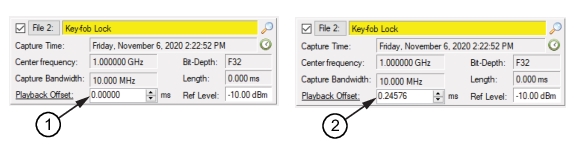
4. Press “Playback Offset” in the parameters column for that signal. The offset value is then displayed in the Playback Offset field as shown in Figure: Playback Offset.
5. Perform the same process for the remainder of the signals displayed.
Playback Offset
1. Playback Offset set to zero
2. Press Playback Offset to calculate the offset value
Note that the Time Offset bar-graph displays the time differentiation at intervals of time for each signal that the peaks occur when synchronized.
Fine Tune the Synchronization
Use the Playback controls and press the playback button to view the signal sweep. The signals may not be perfectly aligned as a peak may drop in and out of view during the playback. To maximize the signals synchronization and alignment, use the View menu to fine-tune the signals starting time as described in Fine Tune Start of Offset.
Fine Tune Start of Offset
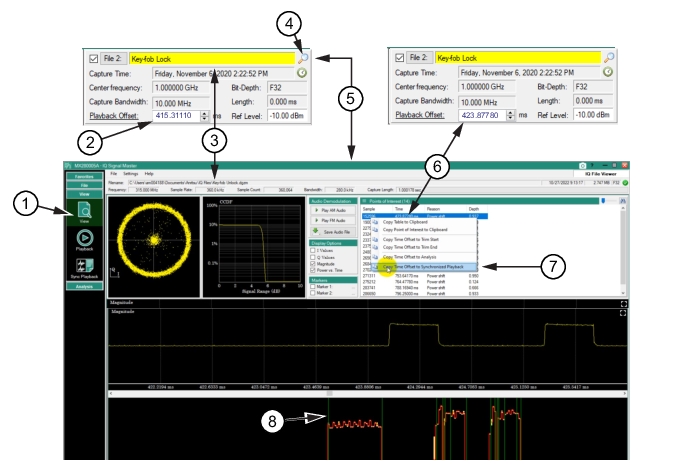
Use the View menu to obtain a better aligned starting time offset for the signals as shown in Figure: Refine Offset Alignment.
Refine Offset Alignment
1. View Menu
2. Playback Offset value before refining the signal alignment
3. View menu shows the same file as the parameter window
4. Magnifier Icon
5. Press magnifier icon to open View Menu.
6. Selected (highlighted) offset time value.
7. Right Click Points of Interest - Copy Time Offset to Synchronized Playback command
1. Press the magnifier icon to show the View menu. The View menu displays the signal data of the Key-fob Lock file.
2. Right-click the starting time in the Points of Interest table. In the Leading edge of the first Points of Interest signal. (This is the best starting time for the offset entry).
3. From the context menu list that is displayed, click “Copy Time Offset to Synchronized Playback”. The time value (ms) from the View menu is exported to the Playback Offset field of the SyncPlayback menu.
4. Repeat the process for each file window Playback Offset value.
The result is a maximized offset time alignment as shown in Figure: Signal Synchronization. Use the control buttons at the bottom of the window to sweep the signals with the same variations in the signal amplitudes, start, and stop times.