 |
|
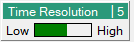 | Time Resolution Provides a time resolution zoom feature of the Spectrogram. Hover the mouse over the green bar and move the green bar to the left to decrease the resolution and to the right for more resolution. The range level of the slider's position is indicated by the number scale from 1 through 8 at the top right corner of the Time Resolution bar display. |
 | Rewind Click jumps back in the spectrogram time span. For example, click will jump back 20 ms and sweep for 10 ms and stop. Each click repeats this pattern until the sweep is pushed back to the beginning of the sweep. |
 | Stop Click to stop the playback stream. Click play starts from the beginning. |
 | Play Click to play (resume) the playback stream. |
 | Pause Click to pause the playback stream. Click play resumes play. You can also move the time slider (shown in Figure: Set Frequency Markers) and click play to resume from the new positioned location. |
 | Double Arrow Right Click jumps forward in the spectrogram time span. For example, click will jump forward 10 ms and stop. Each click repeats this pattern until the sweep is pushed forward to the end of the sweep. |
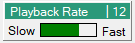 | Playback Rate Provides speed control of the spectrogram. Click Slow to reduce the speed of the playback stream. Click Fast to increase the speed of the playback stream. The speed bar provides a view of the relative stream speed of the spectrograph display. The range level of the slider's position is indicated by the number scale from 1 through 17 at the top right corner of the Playback Rate bar display. To the left (Slow) runs the display at one sweep per second. A slow stream speed is useful for providing a view of every step in the stream, but takes much longer to complete a sweep. As the sweep is increased, the speed indicator displays yellow and then red, indicating that you are skipping over data as it sweeps to adjust to the set speed. |