IQ Signal Masterâ„¢ MX280005A Vector Signal Analysis Software : View Mode : Playback Menu
 
Playback Menu
The Playback menu provides tools to obtain IQ data and create time slices and perform FFTs to create a sweep trace to display along with a Spectrogram. The IQ data is also displayed in a Power vs. Time and I vs. Q plot.
Note 
The playback menu is disabled if IQ File Playback option is not enabled.
Playback Menu
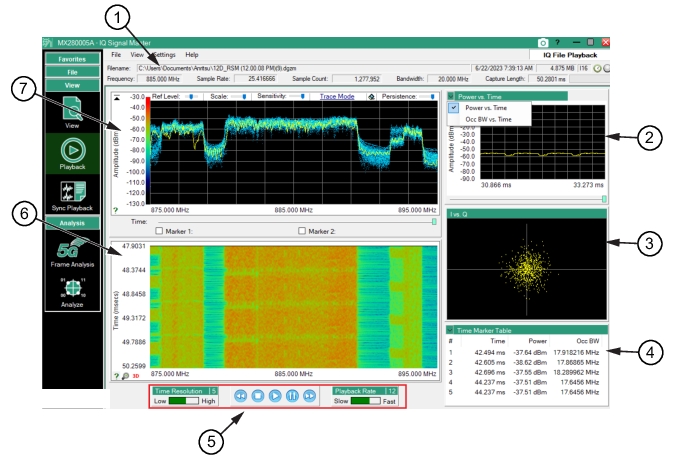
1. Signal Data Parameters: See Signal Parameters.
2. Power vs. Time Graph: Displays power vs time.
3. IQ Constellation Plot: Plots the raw I/Q value pairs from the data file used to generate each frequency plot. This is raw I/Q data and will not align with the symbol points in a more familiar constellation diagram.
4. Peak Table (Shown): Captures Points of Interest. This table also can be changed to AM Audio, FM Audio, Time Marker Table.
5. Playback Toolbar: See Playback Video Tools.
6. Spectrogram Window: The display area shows spectrogram trace data in the time (vertical axis), frequency (horizontal axis), and amplitude (color) domains.
7. Spectrum Window: Spectrum trace data in the frequency domain.
Playback Menu Bar
The Playback menu bar is shown in Figure: Playback Menu Bar.
Playback Menu Bar
File Menu
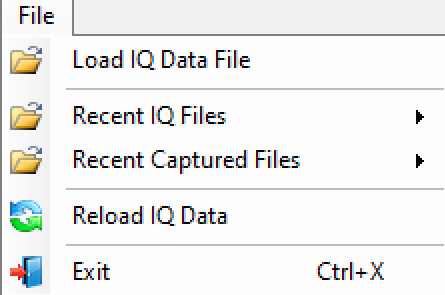
Displays the Playback File menu as shown in Figure: Capture File Menu.
Playback File Menu
-
Load IQ Data File
Browse to find and load an IQ file
Recent IQ Files
Open to display the recent IQ files that have been viewed. Basic information is stored and subsequently when the same file is opened again it is very fast. Along with the basic file description, user settings such as markers are also stored in the same place.
Recent Captured Files
Open to display the recently captured IQ files. This command minimizes the need to browse the file folders to search for the recently captured and saved IQ files.
Reload IQ Data
Reload the most recent viewed file.
Exit:
Exits the program.
View Menu
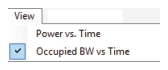
Displays the Playback View menu command as shown in Figure: Playback View Menu.
Playback View Menu
Power vs. Time
Click to change the top right graph to Power vs. Time. A check mark indicates active.
Occupied BW vs. Time
Click to change the top right graph to Occupied Bandwidth. A check mark indicates active.


Settings Menu
The Settings menu is the same as described in Settings Menu.
Help Menu
The Help menu is the same as described in Help Menu.