 |
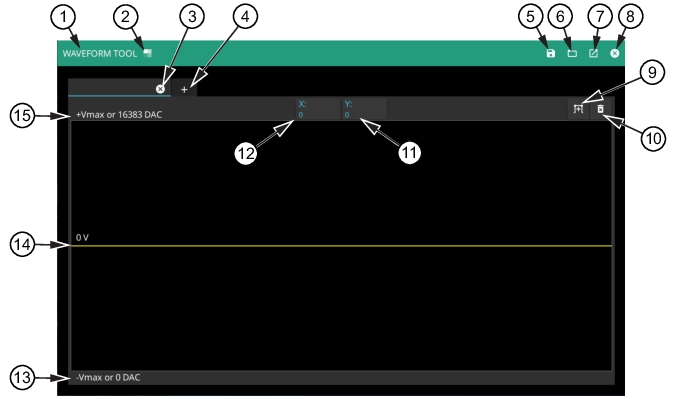
1. WAVEFORM TOOL - Title of waveform generator screen 2. Window Theme - Press to provide the color scheme as lighter or darker. 3. Press to remove the current tab. 4. Press to add additional tabs. 5. Press to open the SAVE WAVEFORM dialog. The file will be saved as a .wav file. 6. Press to open the OPEN WAVEFORM folder that has been designated to save .wav flies. 7. Press to Open Externally. This will detach the screen from the MG362x1A GUI so the user interface is available. See Open Externally. 8. Press to close the WAVEFORM TOOL window 9. Press to open the ADD DESCRETE VALUE. See Press NEW to open a new tab and retain the current graph in the current tab.. 10. Press to clear the waveform in the current tab or open a new tab. SeeClear Graph. 11. Displays the Y value. Press to show the numerical keypad to change the value as shown in Manually Change X and Y values. 12. Displays the X value. Press to show the numerical keypad to change the value as shown in Manually Change X and Y values. 13. Shows the minimum –Vmax or 0 DAC value. 14. ) 0 V line 15. Shows the maximum +Vmax or 16383 DAC value. |