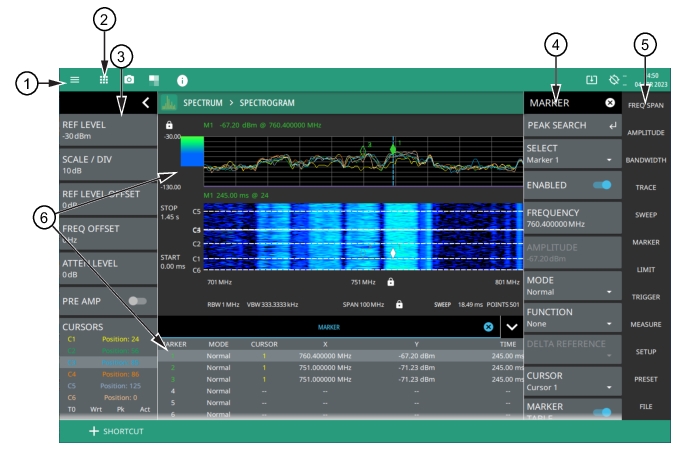
The MS27201A Remote Spectrum Monitor software controls all instrument functions. The software runs on a user-supplied PC. The figure below identifies the main display areas, which are each described in more detail later in this chapter.
GUI Overview (sample display elements)
1. The system menu provides quick access to the system settings, measurement mode selection and informational dialogs.
2. 9-dot icon provides access for selecting the analyzers.
3. The status and trace panel is used to show common settings and controls, and to provide trace and cursor information. The information displayed on this panel depends on the current measurement and view settings. Refer to the appropriate chapter in this guide for information about this panel.
4. Menus are used to configure measurement settings such as frequency, amplitude, and bandwidth, and to enable measurement modes such as OBW, ACP, and SEM measurements and views such as Normal and Spectrogram views.
5. The main menu provides access to setting menus and other instrument controls.
6. The upper area typically displays graphical data such as spectrum trace and spectrogram plots. The lower area typically displays tabular measurement data such as marker data, or other measurement data depending on the selected measurement.
Title Bar
The title bar is located at the top of the interface screen. It displays icons that provide access to information and user actions as described below. All of the icons are active and will open the appropriate menu or item when clicked.
Title Bar
1. Select the 3-line icon to display the System Menu. The instrument model with frequency option and its serial number are also displayed.
3. Select the camera icon to capture a screen shot of the current display. The image file is saved in PNG format with the following naming scheme: screenshot_yymmdd_hhmmss.png (year, month, day, hour, minute, second). Using the Screenshot Setup, you can set the screen capture region, color theme, annotations, and destination directory.
4. Select THEME icon to choose from the available display color themes.
5. Notifications are generated when an error is detected or an activity such as a screen shot has taken place. The number of unread notifications appears next to the icon. Select the icon to display the Notifications list.
6. Displayed when a USB device is attached. To ensure the device or it’s data does not become corrupted, click this icon to eject (unmount) the USB device before it is unplugged from the USB port. A similar icon can be accessed via Files.
7. Displayed when a USB device contains an installable software package or one is found from an Internet resource. Selecting the icon launches the Software Update.
8. Connection certificate icon will be available on instruments installed with secure communication Option 17. Click this icon to view the connection certificate details. Click ADD CUST CERT button to upload RSA encryption PEM certificate saved in your PC.
9. Select the GPS icon to view the GNSS (GPS) Settings (Option 31). If toggled on, the GPS coordinates will also display here.
10. The right side of the instrument title bar displays the system date and time. Selecting this field opens the Date Time Settings.
Common GUI Controls
The following lists common controls that you will encounter when working with the Remote Spectrum Monitor.
Common GUI Controls
The 3-line icon provides quick access to system information, settings, file management, and built-in diagnostic tools. Refer to System Menu.
The 9-dot icon provides access for selecting the analyzers. Refer to Selecting the Analyzer
The camera icon will capture a screen image and save it in the selected directory location of the PC. Refer to Screenshot Setup.
The Theme icon allows you to select from the list of available display color themes.
The USB eject icon is displayed when the instrument detects one or more USB devices. Selecting this icon ejects the USB device, or presents a dialog to select which USB device to eject when more than one device is detected.
The software update icon is displayed when the instrument detects a valid software package. Selecting this icon opens an updated dialog to select the software to install. Refer to Software Update.
The local host icon is displayed only on the MS27201A ARRT software when connected to the localhost instead of an instrument. The icon is not functional. Refer to ARRT Software.
The GPS icon shows connection status (no connection, no fix, good fix, using last good fix). Selecting the icon opens the GPS/GNSS settings menu. Refer to GNSS (GPS) Settings (Option 31).
The close icon is used to close menus and other dialogs.
The chevron will expand and collapse the status and table displays. A similar chevron on the virtual keyboard may be for capital letters or to scroll through key sets.
Toggle icon will enable and disable the feature. When highlighted in blue, the item is enabled.
The drop-down icon exposes a list of items from which to choose.
The refresh icon will restart a process, such as a sweep or averaging count.
The edit icon allows editing of a feature or label.
The enter icon accepts an entry. A similar icon is found on menu buttons to indicate an additional menu.
Select the padlock icon next to center frequency on the graticule to change the frequency by dragging, when using a touch-screen enabled PC. Touch the padlock icon next to SPAN to change the span by pinching, when using a touch-screen enabled PC. You can toggle on DRAG and PINCH options by selecting GESTURES in Frequency menu. Refer to GESTURES menu in the spectrum analyzer measurement guide (10580-00447).
Reference Level padlock icon by default, locks the reference level that is accidentally prone to swiping when using a touch-screen enabled PC.
Shortcut icon used to create a shortcut of a desired application from current settings or an existing setup file.
Data Entry
User input can be in the form of numeric values for instrument or measurement settings, selected values from a preset list, or alphanumeric text when entering file names, for example. To view or change a parameter value, access the appropriate menu or control, then enter data using menus.
Invalid Entries
When setting parameters or entering other types of data, if an entry is out of range or is otherwise invalid, Remote Spectrum Monitor will shade the background display and may provide a message indicating a valid range. In this case, clear or cancel the entry and enter a valid value or change the units by using either the drop-down selection next to the data entry window, or with the unit terminators to the left of the keypad.
Numeric Values
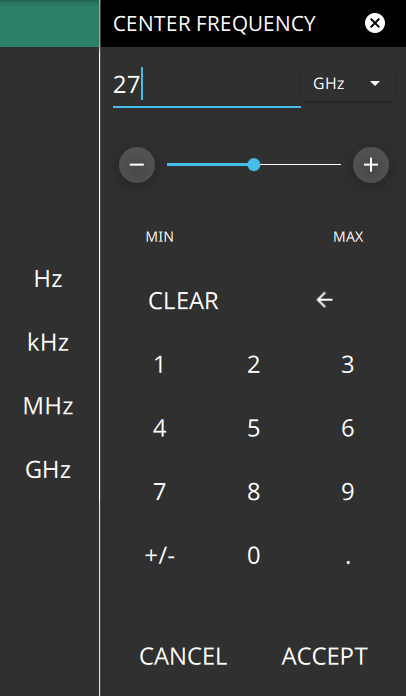
To modify a numeric parameter setting that is displayed on a menu or annotated field, click the item to make it active and to display the numeric keypad data entry control and enter the new value.
Menu Keypads
The keypad typically provides controls to:
• Enter new values directly, such as frequency entries in Hz, kHz, MHz, or GHz. There are two places on the keypad to enter unit terminators when applicable, on left side pop-out that occurs as frequency keypad entries are selected, or on the top right corner drop-down of the entry field.
• Drag a parameter value within its settable range using a sliding control.
• Increment the parameter value up or down. At each end of the slider are plus (+) and minus (–) controls that increment the parameter value. Most parameters have a fixed increment, such as bandwidth that follows a 1:3:10 sequence and span that follows a 1:2:5:10 sequence. In the case of frequency, you can set a custom frequency step increment value. Once the entry is complete, click the desired unit or click ACCEPT to complete the entry.
• Set the parameter to the maximum or minimum possible value.
• CLEAR the entire entry.
• Left arrow to backspace and delete the entry
• CANCEL to terminate any entries made for that particular setting. Note that clicking the "X" to close the keypad is the same as clicking cancel. Selecting CANCEL will restore settings back to the state they were in before the keypad opened, even if changes from the +/- controls are already reflected in the data display.
• ACCEPT to operate with the settings displayed on the keypad.
Selection Lists
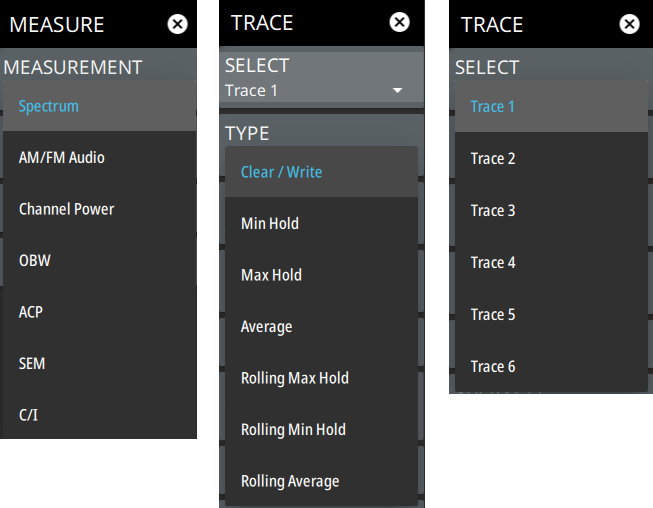
Some parameters and instrument functions are selectable from a list. These list boxes display the available selections and value limits as applicable. Scroll through the list and select the desired entry.
Menu Selection Lists
To cancel the selection, click somewhere else on the display or close the menu (X).
Scroll Indication
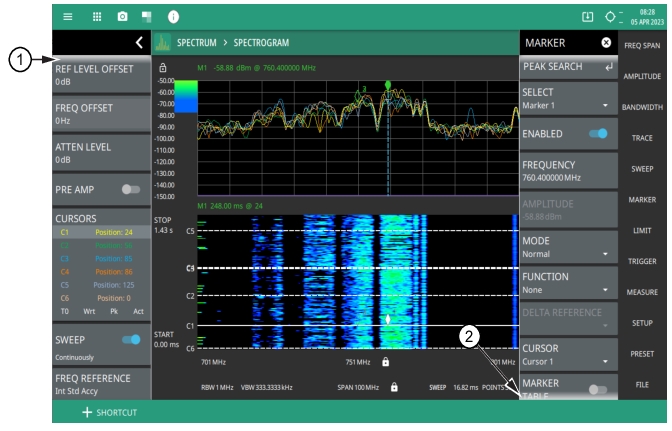
In some cases, menus, status panels, or other lists contain more information than can be displayed in the available area. In these cases, the top or bottom of the panel will have a fade-to-white appearance as shown below. You can scroll the control to move it up or down to expose the hidden information.
Scroll Indication
1. The fade-to-white at the bottom of the status panel and marker table here indicates that there is more information below the display area. The panel can be scrolled by dragging it upward to expose more information.
2. The fade-to-white at the top of the menu here indicates that there is more information above the display area. The menu can be scrolled by dragging it downward to expose the information.
Note
If the display is set to another color theme, the fade effect remains the same but the color may fade to a dark shade.
Text Entry and EZ Keyboard
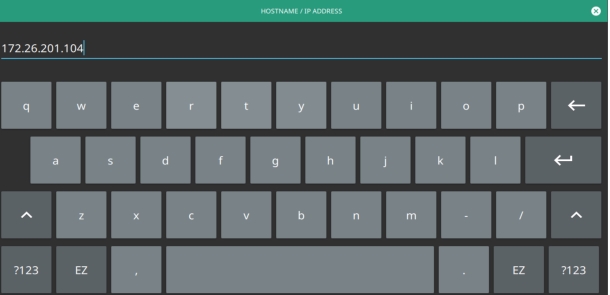
When an instrument function requires you to enter text, such as entering an Ethernet hostname, a virtual alphabetic keyboard is displayed. See Figure: On-Screen Keyboard. Select the “?123” key to switch to the digits and symbols keyboard. Use the left arrow key (backspace) to delete the character to the left of the insertion point. The insertion point can be moved to a clicked position in the data entry field. You can enable caps lock by double clicking the shift key.
On-Screen Keyboard
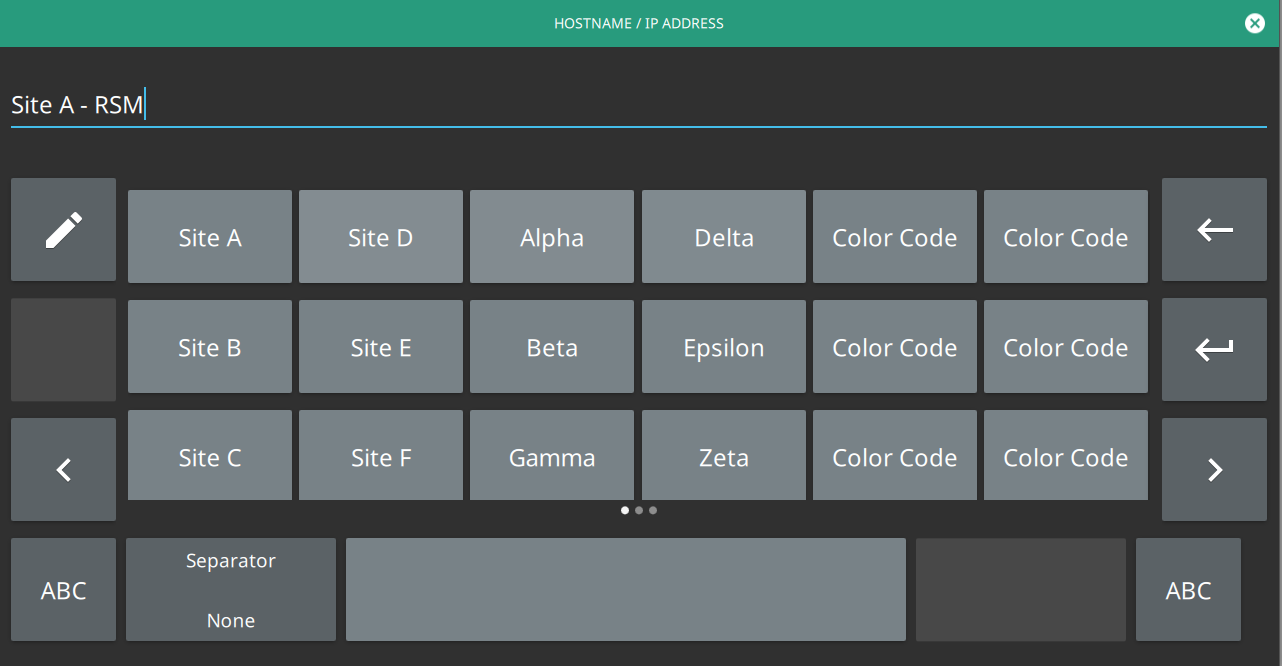
The EZ key switches to a configurable EZ keyboard, illustrated below.
On-Screen EZ Keyboard
Use the EZ keyboard to enter frequently used text strings with a single screen tap. The EZ keyboard is initially populated with default values. Each key enters the entire string as shown on the key. For convenience, you can set an automatic Separator character to be placed between each EZ key string.
To change a key’s value:
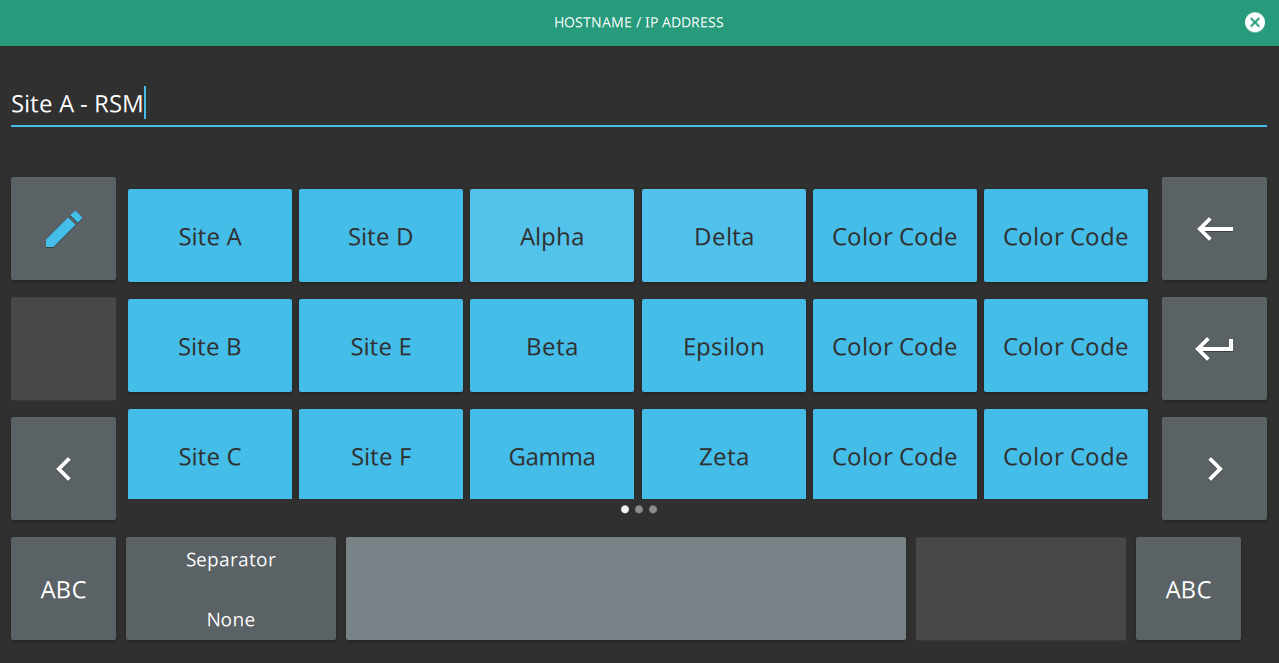
1. Select the pencil (edit) key. The EZ keys will become highlighted.
On-Screen EZ Keyboard
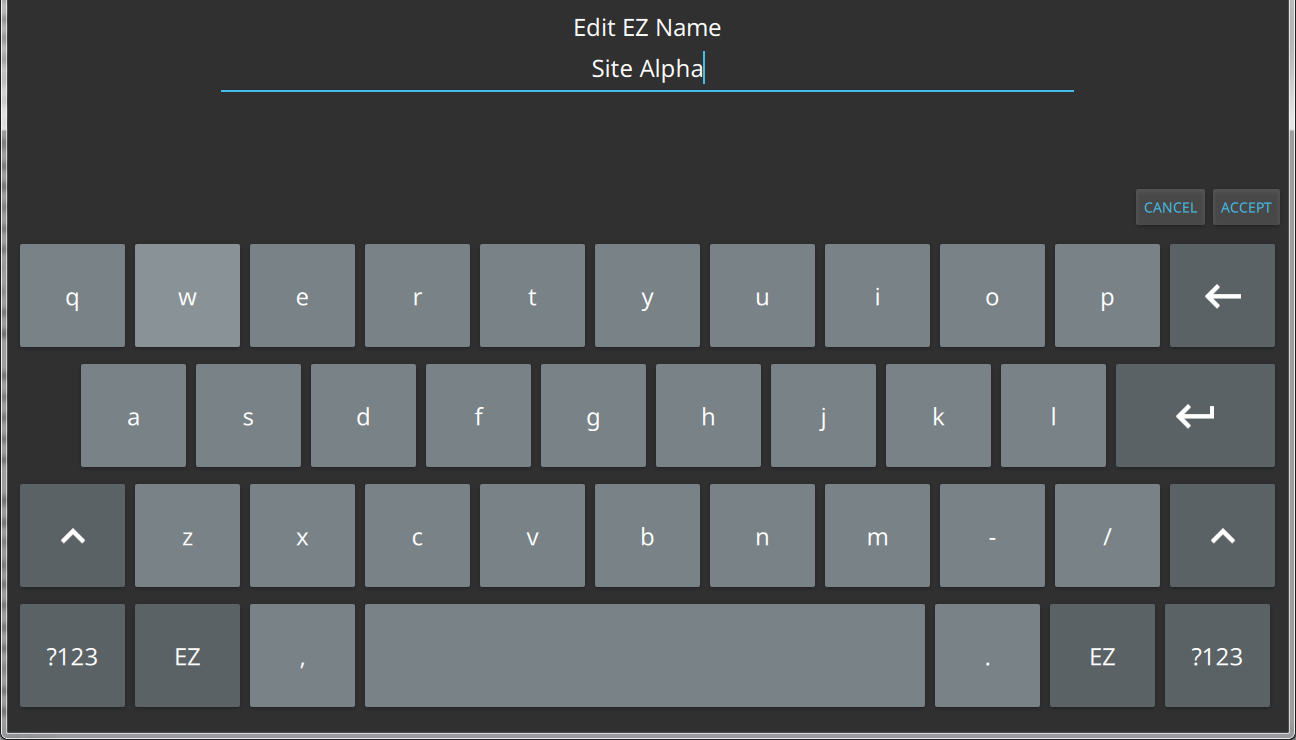
2. Select the key to be edited. This will display the standard keyboard for entering a new EZ key value.
On-Screen EZ Keyboard
3. Enter the new value, then click ACCEPT to assign the new value to the EZ key, or click CANCEL.