 | |
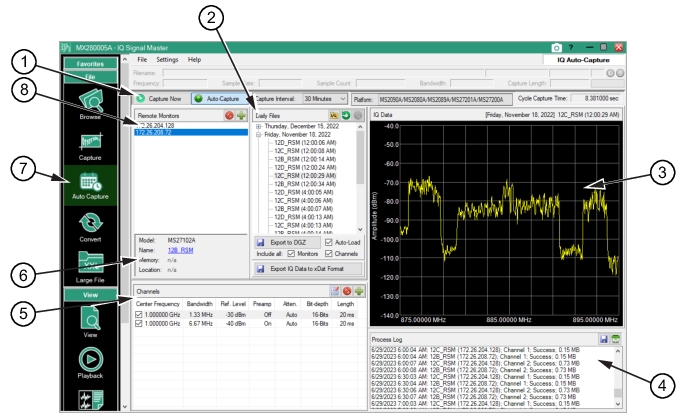
1. See Capture Control Panel. 2. See Auto Capture Daily Files Window. 3. See Auto Capture Signal View. 4. See Auto Capture Process Log. | 5. See Auto Capture Channels List. 7. Auto Capture Menu Button |
| |
1. See Capture Control Panel. 2. See Auto Capture Daily Files Window. 3. See Auto Capture Signal View. 4. See Auto Capture Process Log. | 5. See Auto Capture Channels List. 7. Auto Capture Menu Button |
 |
- 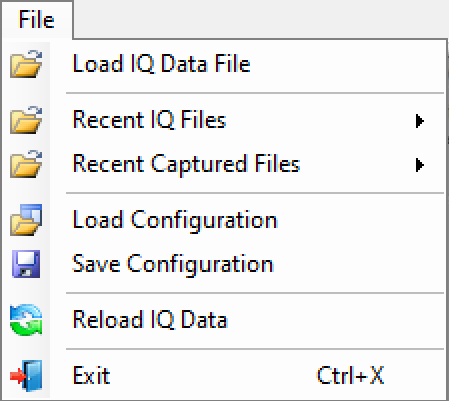 | Load IQ Data File Browse to find and load an IQ file Recent IQ Files Open to display the recent IQ files that have been viewed. Basic information is stored and subsequently when the same file is opened again it is very fast. Along with the basic file description, user settings such as markers are also stored in the same place. Recent Captured Files Open to display the recently captured IQ files. This command minimizes the need to browse the file folders to search for the recently captured and saved IQ files. Load Configuration Load a specific Auto Capture configuration file (.cfg)(*.cfg). Save Configuration Save to a specific Auto Capture configuration file location (.cfg)(*.cfg). Reload IQ Data Reload the most recent viewed file. Exit: Exits the program. |