IQ Signal Masterâ„¢ MX280005A Vector Signal Analysis Software : Overview : Mode Tabs
 
Mode Tabs
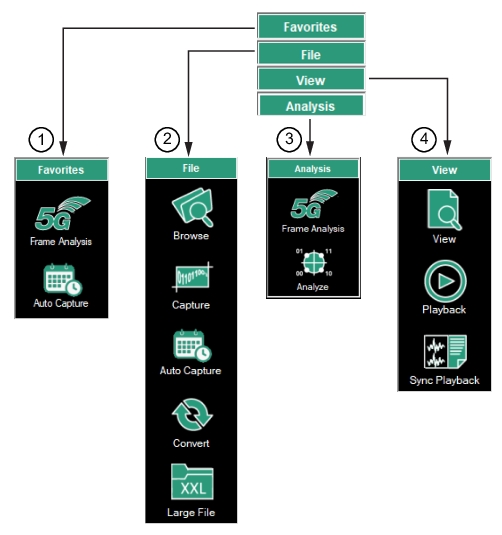
The MX280005A menus provide the setups, applications, and measurements user interface screens shown in Figure: MX280005A IQ Signal Master Menus.
MX280005A IQ Signal Master Menus
1. Favorites Menu: See Favorites Folder.
2. File Mode: See File Mode.
3. Analysis Mode: See Analysis Mode.
4. View Mode: See View Mode.
Analysis Mode
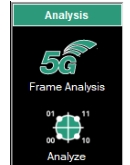
The Analysis mode menus are described in Figure: Analysis Mode.
Analysis Mode
-
5G Frame Analyze Menu
5G analysis.
See
5G Frame Analysis Menu.
Analyze Menu
Modulation analysis of IQ data files.
See Analyze Menu.
 
 
File Mode
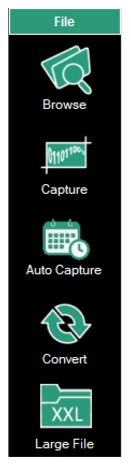
The File mode menus are described in Figure: File Mode.
File Mode  
-
Browse Menu
Browse to the stored IQ files to analyze.
See Browse Menu
Capture Menu
Capture IQ data from Anritsu analyzers.
See Capture Menu.
Auto Capture Menu
Time synchronized IQ capture on a fixed time interval schedule.
See Auto Capture Menu.
Convert Menu
Convert IQ files to a usable format.
See Convert Menu.
Large File Menu
Load and open large files using time resolution settings to use data power channel peaks to analyze.
See Load Large File Menu.
View Mode
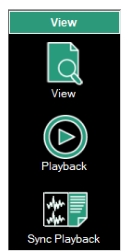
The View Mode menus are described in Figure: File Mode.
View Mode 
-
View Menu
Basic I and Q data viewer.
See View Menu.
Playback Menu
Replay IQ data in frequency domain.
See View Menu.
Sync Playback Menu
Synchronized I/Q file playback.
See Sync Playback Menu.
 
Favorites Folder
The Favorites folder is used as a preference location for users to access frequently used menus.
Copy Menus to Favorites
The MX280005A menus offer a robust range of IQ analysis menus. Some IQ analysis requires navigating through interactive menus to capture and analyze a signal. Once a measurement setup is established, some menus may not require access often. As an alternative to repeatedly navigating through the menus listed, a user may store frequently used menus into the Favorite folder. The Favorites folder can be used as a repository for menus that are accessed frequently when performing IQ analysis.
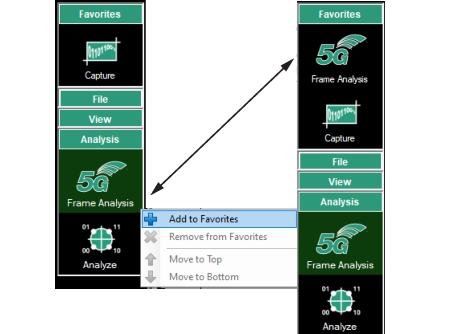
To store a menu in the Favorites menu folder, right-click a frequently used menu to show the submenu shown in Figure: Add to Favorites. Below, the 5G menu is copied and added to the Favorites folder. More menus can also be added and accessed through the Favorites folder.
Add to Favorites
Add to Favorites
Click a submenu as described above to copy and move it to the Favorites Folder.
Remove from Favorites
Right-click a menu in the Favorites folder and click Remove from Favorites to remove it from the Favorites folder.
Move to Top
Right-click a menu in the Favorites folder and click Move to Top to move it to the top of the list.
Move to Bottom
Right-click a menu in the Favorites folder and click Move to Bottom to move it to the bottom of the list.